 logo
logo



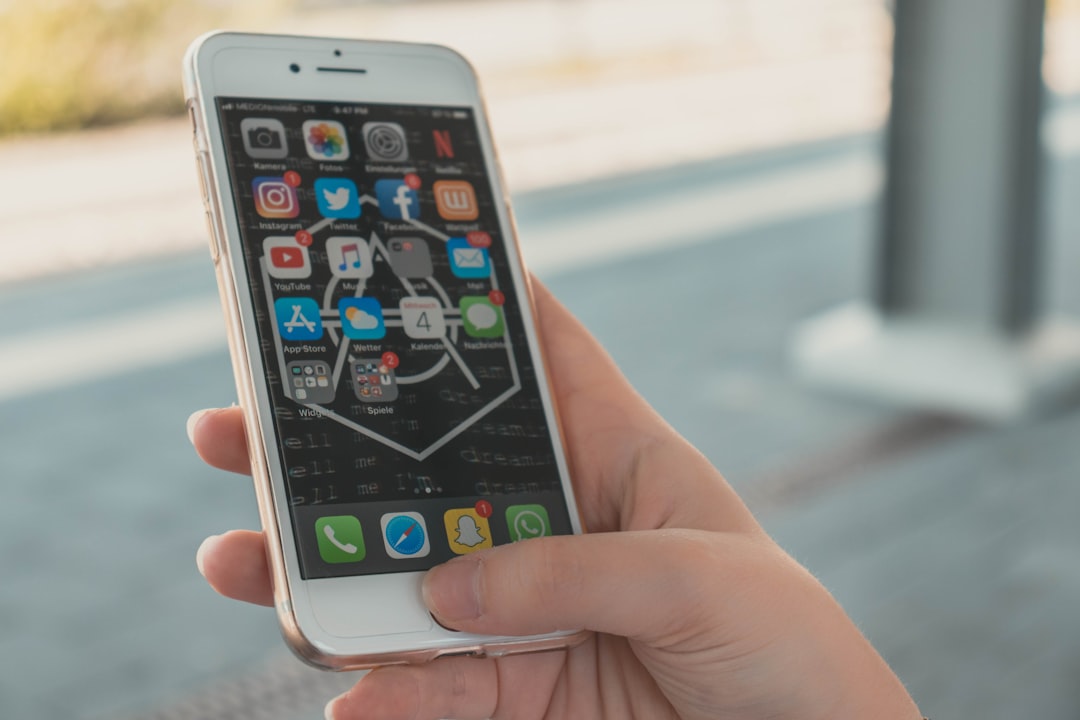
Snapchat users occasionally encounter unexpected login errors, and one of the more confusing messages is Snapchat Error Code C14A. This issue can prevent access to an account, disrupt communication streaks, and cause frustration—especially when the cause is unclear. Understanding what this error means and how to fix it can help users regain access quickly and safely.
TL;DR: Snapchat Error Code C14A usually appears due to server issues, app glitches, outdated versions, or network problems. It prevents users from logging into their accounts but is often temporary and fixable. Updating the app, checking your internet connection, clearing cache, or reinstalling Snapchat typically resolves the problem. In rare cases, contacting Snapchat Support may be necessary.
What Is Snapchat Error Code C14A?
Snapchat Error Code C14A is a login-related issue that typically appears when the app is unable to connect properly to Snapchat’s servers. When this happens, users may see a message stating that “Something went wrong” or that the login attempt has failed. The error does not usually mean that the account has been hacked or permanently locked, but it does signal a temporary obstruction.
This error can occur on both Android and iOS devices. Although Snapchat does not always provide detailed explanations for its error codes, C14A is generally linked to connectivity issues, outdated applications, server outages, or corrupted app data.

Common Causes of Snapchat Error Code C14A
Several factors can trigger Error Code C14A. Identifying the root cause is the first step toward resolving it efficiently.
1. Snapchat Server Outages
Sometimes the problem is not on the user’s end. Snapchat servers may be temporarily down for maintenance or experiencing technical issues. During these outages, login attempts may fail.
2. Poor or Unstable Internet Connection
A weak Wi-Fi signal or unstable mobile data connection can prevent Snapchat from communicating with its servers.
3. Outdated Snapchat App
Using an older version of the app may cause compatibility issues. Snapchat frequently releases updates to fix bugs and improve functionality.
4. Corrupted App Cache or Data
App cache files sometimes become corrupted, particularly after updates. This can interfere with login processes.
5. VPN or Proxy Usage
Snapchat may block certain IP addresses. Using a VPN or proxy server can sometimes trigger login errors, including C14A.
6. Suspicious Login Activity
If Snapchat detects unusual login attempts, it may temporarily block access as a security measure.
How To Fix Snapchat Error Code C14A
The good news is that most users can resolve this error with a few troubleshooting steps. Below are the most effective fixes.
1. Check Snapchat Server Status
Before attempting complicated solutions, users should verify whether Snapchat is down. This can be done by:
- Checking Snapchat’s official Twitter/X support account
- Visiting third-party outage monitoring websites
- Asking friends if they are experiencing similar issues
If servers are down, the only solution is to wait until Snapchat resolves the issue.
2. Restart the Device
Restarting the smartphone can clear temporary glitches. This simple step often resolves minor connectivity and software conflicts.
3. Check Internet Connection
- Switch between Wi-Fi and mobile data
- Restart the router
- Turn Airplane mode on and off
- Run a speed test to confirm stable connectivity
Stable internet access is essential for logging into Snapchat.
4. Update the Snapchat App
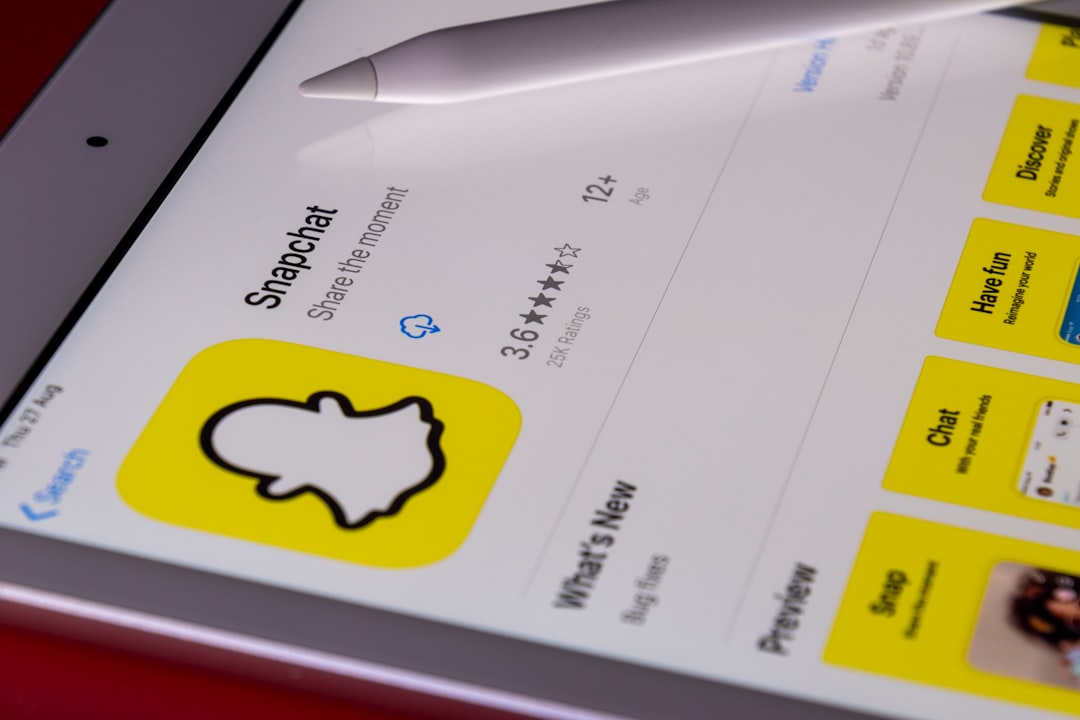
Users should ensure they are running the latest version of Snapchat:
- Open the App Store (iOS) or Google Play Store (Android)
- Search for Snapchat
- Tap Update if available
Updates often contain bug fixes that may directly address error code C14A.
5. Clear Snapchat Cache
For Android:
- Go to Settings
- Tap Apps
- Select Snapchat
- Tap Storage
- Select Clear Cache
For iOS:
iPhones do not offer a direct cache-clearing option. Users may need to uninstall and reinstall the app instead.
6. Disable VPN or Proxy
If a VPN is active, users should disable it and try logging in again. Snapchat may interpret VPN traffic as suspicious activity.
7. Reinstall Snapchat
Deleting and reinstalling the app ensures fresh installation files:
- Uninstall Snapchat
- Restart the device
- Reinstall from the official app store
- Log in with account credentials
This method resolves most corruption-related issues.
8. Reset Network Settings
If the issue persists, resetting network settings can help. This action removes saved Wi-Fi passwords and network configurations but often fixes deeper connectivity problems.
9. Contact Snapchat Support
If none of the above steps work, users should contact Snapchat Support through the official website. They may need to verify their identity and confirm there has been no violation of terms.
Troubleshooting Comparison Chart
| Solution | Difficulty Level | Time Required | Best For |
|---|---|---|---|
| Check Server Status | Very Easy | 2–5 Minutes | Widespread outages |
| Restart Device | Very Easy | 2 Minutes | Minor glitches |
| Update App | Easy | 5 Minutes | Outdated software |
| Clear Cache | Moderate | 5–10 Minutes | Corrupted temporary files |
| Disable VPN | Easy | 2 Minutes | IP related login blocks |
| Reinstall App | Moderate | 10 Minutes | Severe app corruption |
| Contact Support | Advanced | 24–48 Hours | Account specific issues |
How To Prevent Snapchat Error Code C14A in the Future
While some server-side issues are unavoidable, users can minimize the risk of encountering this login error by following preventative practices.
- Keep Snapchat updated at all times
- Avoid using unofficial or modified versions of the app
- Ensure a stable internet connection before logging in
- Limit VPN usage while accessing Snapchat
- Regularly restart the device to maintain optimal performance

Maintaining device hygiene, including clearing unused apps and updating operating systems, also contributes to smoother app functionality.
Is Snapchat Error Code C14A Serious?
In most cases, Error Code C14A is not serious. It does not automatically indicate that an account has been hacked, banned, or permanently disabled. The issue is typically temporary and resolved through basic troubleshooting.
However, if the error appears alongside messages about suspicious activity or locked accounts, users should take additional precautions, such as changing their password and enabling two-factor authentication.
When To Be Concerned
Although rare, users should seek further assistance if:
- The error persists for several days
- Password reset attempts fail
- The account shows unfamiliar activity
- Snapchat sends a security warning
In such cases, prompt communication with official support teams is essential.
Conclusion
Snapchat Error Code C14A can be frustrating, especially when users are eager to maintain streaks and conversations. Fortunately, the issue is usually tied to server problems, connectivity issues, or outdated software rather than permanent account damage. By systematically troubleshooting—starting with simple solutions like checking server status and updating the app—most users can quickly restore access.
Understanding the meaning behind this error empowers users to respond calmly and effectively instead of assuming the worst.
Frequently Asked Questions (FAQ)
1. What does Snapchat Error Code C14A mean?
It typically indicates a connection problem between the app and Snapchat’s servers. It may be caused by server outages, app glitches, or internet issues.
2. Is Error Code C14A a ban?
No, this error does not usually mean the account is banned. It is generally a temporary technical issue.
3. How long does Snapchat Error Code C14A last?
If caused by server downtime, it may last a few hours. If it is device-related, it can be resolved immediately through troubleshooting.
4. Can reinstalling Snapchat fix Error C14A?
Yes, reinstalling often resolves corrupted file issues and restores normal functionality.
5. Does using a VPN cause this error?
In some cases, yes. Disabling the VPN can resolve login restrictions tied to suspicious IP addresses.
6. Will clearing cache delete chats?
No, clearing the cache does not delete chats or memories. It only removes temporary files.
7. Should users contact Snapchat Support immediately?
It is best to try basic troubleshooting steps first. If the issue persists after multiple attempts, contacting support is recommended.
