 logo
logo



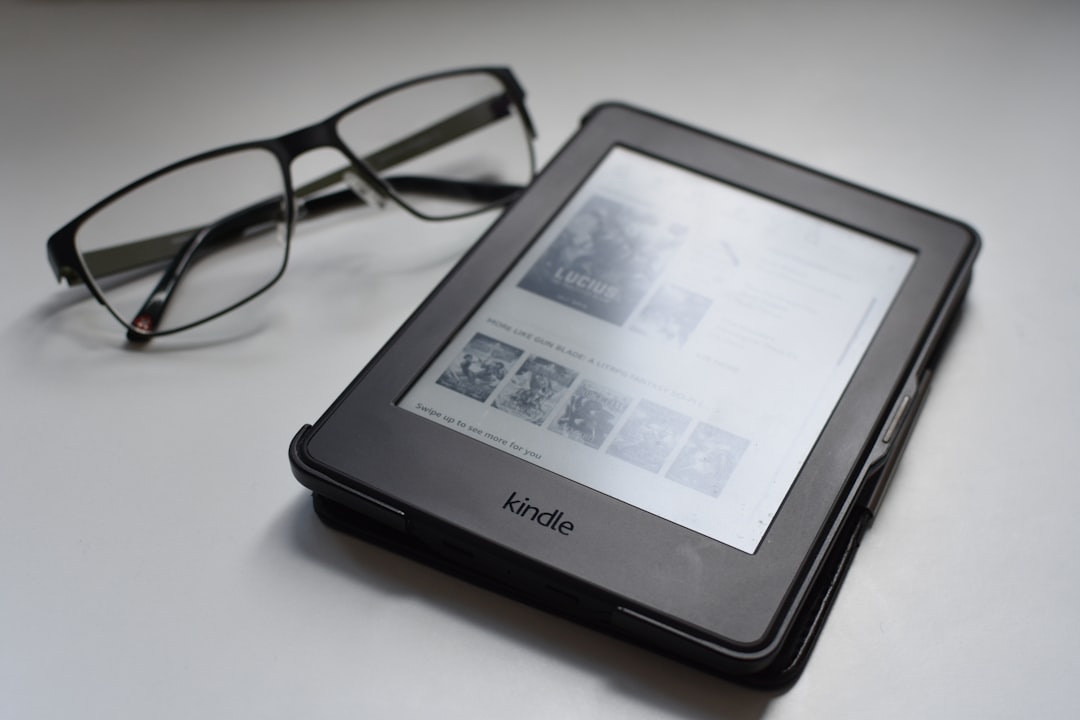
Whether you want to save a favorite quote, capture an error message for troubleshooting, or share an interesting screen with a friend, knowing how to take a screenshot on your Kindle can come in handy. Although Kindle devices are designed primarily for distraction-free reading, they do include built-in screenshot functionality—if you know where to look and how to use it.
TLDR: Taking a screenshot on a Kindle depends on the model you own. On most Kindle e-readers, you can capture the screen by tapping two opposite corners at the same time. On Kindle Fire tablets, press the Power and Volume Down buttons simultaneously. Screenshots are automatically saved to your device and can be transferred to a computer using a USB cable.
Why Take a Screenshot on a Kindle?
Kindles are typically associated with reading eBooks, but they can do much more. Here are a few common reasons users take screenshots:
- Saving inspirational quotes from books
- Documenting errors or glitches for support
- Sharing reading progress with friends or social media followers
- Capturing notes or annotations
- Recording app screens (on Kindle Fire)
The method you use depends entirely on which Kindle model you own. Let’s break it down.
How to Take a Screenshot on Kindle E-Readers
This section applies to traditional Kindle e-ink devices, including:
- Kindle (Basic)
- Kindle Paperwhite
- Kindle Oasis
- Kindle Voyage (older model)
These devices do not have physical volume buttons and use touchscreens (except very early models with physical keyboards).
Method: Tap Opposite Corners
On most modern Kindle e-readers, taking a screenshot is surprisingly simple:
- Navigate to the screen you want to capture.
- Using two fingers, tap two opposite corners of the screen at the same time.
- The screen will flash briefly (this may resemble a page refresh), indicating the screenshot has been taken.
For example:
- Top left + bottom right corners, or
- Top right + bottom left corners
The screen flash can be subtle due to the e-ink display, so watch closely.
Where Are Kindle E-Reader Screenshots Saved?
Unlike smartphones, Kindle e-readers do not have built-in galleries. To access your screenshots:
- Connect your Kindle to a computer using a USB cable.
- Open the Kindle’s storage drive.
- Locate the “documents” folder.
- Look for image files in .png format.
You can then copy them to your computer for sharing or storage.
Troubleshooting Tips
- If nothing happens, try tapping the corners exactly simultaneously.
- Remove any thick screen protectors that may interfere with touch sensitivity.
- Restart your Kindle if screenshots aren’t responding.
How to Take a Screenshot on Kindle Fire Tablets
It’s important to understand that a Kindle Fire (now branded as Amazon Fire) is actually a tablet—not an e-ink reader. Because of this, it works more like an Android device.
If you own a:
- Fire 7
- Fire HD 8
- Fire HD 10
- Any newer Fire tablet
Follow the method below.
Method: Power + Volume Down Buttons
- Open the screen you want to capture.
- Press and hold the Power button and the Volume Down button at the same time.
- Hold for about one second.
- You’ll see a quick animation or hear a shutter sound (if enabled).
If done correctly, your screenshot will automatically save to your device.
Where to Find Fire Tablet Screenshots
Unlike e-readers, Fire tablets store screenshots in a visible location:
- Open the Photos app
- Go to the Screenshots folder
Alternatively, you can find them by navigating to:
Internal Storage → Pictures → Screenshots
From there, you can:
- Share via email
- Upload to cloud storage
- Post to social media
- Edit or crop the image
Older Kindle Models (With Physical Keyboards)
If you happen to own an early-generation Kindle with a physical keyboard (such as the Kindle Keyboard model), the process is slightly different and less intuitive.
On very old models:
- You may need to press Alt + Shift + G to capture a screenshot.
As with newer e-readers, screenshots are saved to the device storage and must be transferred to a computer via USB.
Since these models are now discontinued, instructions may vary slightly depending on firmware version.
Important Things to Know About Kindle Screenshots
1. DRM Limitations
Some books may have restrictions due to Digital Rights Management (DRM). While you can technically capture the screen, redistribution of copyrighted material may violate publisher policies.
2. Image Quality
On e-ink devices, screenshots reflect the grayscale display. They will not appear in color, even if the original book cover includes color elements.
On Fire tablets, however, screenshots are captured in full color and high resolution.
3. No Built-In Editing on E-Readers
Kindle e-ink readers do not allow cropping, annotation, or direct sharing of screenshots. Editing must be done after transferring the file to another device.
4. Silent Capture
E-ink Kindles do not produce a shutter sound. The only indicator is a brief screen flash.
Creative Ways to Use Kindle Screenshots
Once you know how to capture your screen, there are several creative uses:
- Create quote collections for presentations or personal inspiration
- Archive research highlights from nonfiction materials
- Track reading milestones visually
- Document technical issues for customer support
- Share educational excerpts for classroom discussions
Common Problems and Quick Fixes
Screenshot Won’t Capture
- Ensure your fingers tap simultaneously.
- Update device software (Settings → Device Options → Software Updates).
- Restart the device.
Can’t Find the Screenshot File
- Make sure you check the correct folder (documents for e-readers).
- Safely eject and reconnect your Kindle to your computer.
- Try a different USB cable if files aren’t appearing.
Buttons Not Working (Fire Tablet)
- Check that the volume button isn’t stuck.
- Press both buttons firmly and at the exact same time.
- Verify you’re using Volume Down, not Volume Up.
Step-by-Step Summary by Device Type
Kindle Paperwhite / Oasis / Basic:
- Tap two opposite corners simultaneously.
- Transfer file via USB.
Kindle Fire / Fire HD:
- Press Power + Volume Down.
- Find in Photos app → Screenshots.
Old Kindle Keyboard:
- Press Alt + Shift + G.
- Transfer via USB.
Final Thoughts
Although Kindle devices are optimized for reading rather than advanced multitasking, the screenshot function is a surprisingly useful tool. Whether you’re preserving meaningful quotes, troubleshooting technical issues, or capturing content for educational use, the process is straightforward once you know the right method for your specific model.
The key is understanding the difference between e-ink Kindle readers and Fire tablets. Once you identify your device type, capturing your screen takes only a tap or a button press. With that knowledge in hand, you can make your Kindle experience even more versatile and productive.
Now that you know how to take a screenshot on any Kindle device, you’re equipped to capture and save important moments from your digital reading life with confidence.
