 logo
logo



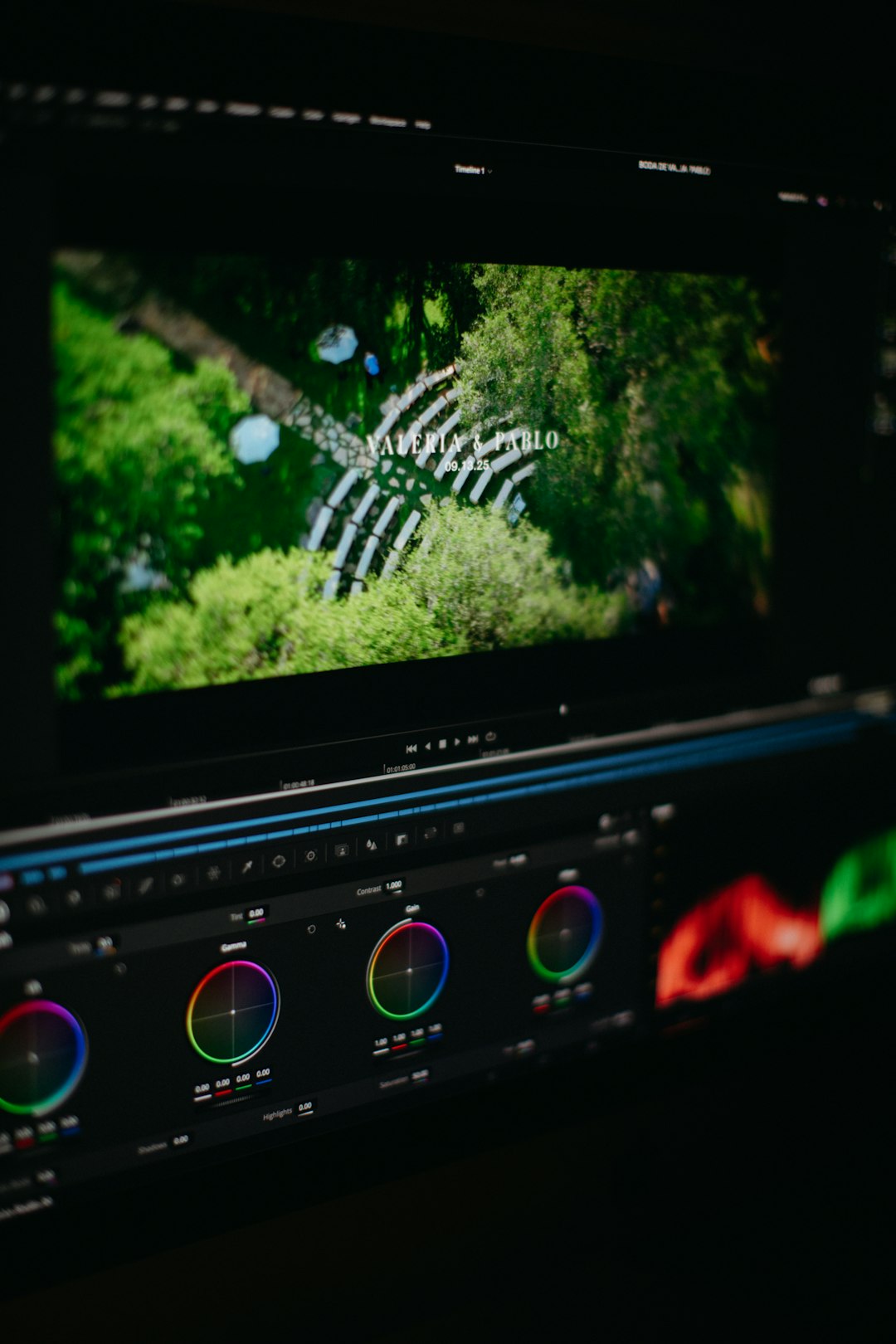
Modern video projects often require more than basic playback and trimming. Editors, marketers, educators, gamers, and social media teams frequently need to divide large videos into smaller clips, remove unwanted sections, separate chapters, or prepare content for multiple platforms. A powerful video splitter software solution for PC, Mac, or web-based workflows makes that process faster, cleaner, and more accurate.
TLDR: Video splitter software helps divide long videos into smaller, usable clips without unnecessary complexity. The best tools support multiple formats, fast processing, precise timeline control, and export options for different platforms. PC, Mac, and web-based splitters each offer unique advantages depending on project size, editing needs, and available hardware. A reliable splitter can save time, preserve quality, and improve the overall editing workflow.
Why Video Splitter Software Matters
Video content has become central to online communication, training, entertainment, and business promotion. A single recorded file may contain several useful moments, but those moments often need to be separated before publishing or sharing. For example, a webinar may need to be divided into lessons, a podcast may need highlight clips, or a recorded meeting may need only the important sections extracted.
A dedicated video splitter allows editors to perform these tasks with greater precision than a basic media player or general file tool. It can help maintain the original quality, reduce rendering time, and simplify the organization of multiple clips. For professionals handling frequent video projects, these features become essential rather than optional.

Key Features of a Powerful Video Splitter
Not every video splitter offers the same level of control. A strong application usually includes a combination of speed, accuracy, compatibility, and export flexibility. The most useful features include:
- Frame-accurate splitting: This allows clips to be cut at the exact frame needed, which is important for polished edits.
- Batch processing: Multiple files can be split at once, saving time for large projects.
- Format support: Popular formats such as MP4, MOV, AVI, MKV, WMV, and WebM should be supported.
- Lossless cutting: Some tools can split video without re-encoding, preserving original quality and speeding up exports.
- Timeline preview: A visual timeline helps editors place split points accurately.
- Preset exports: Built-in settings for YouTube, Instagram, TikTok, presentations, or mobile devices can simplify publishing.
- Audio handling: A reliable splitter should keep audio synchronized and allow clean separation of sound and video when needed.
Video Splitter Software for PC
Windows PCs offer a wide range of powerful video splitting tools, from lightweight utilities to full editing suites. PC-based software is often preferred for performance-heavy jobs because desktop hardware can handle large files, high-resolution footage, and complex codecs more efficiently than many browser-based tools.
For simple splitting, a PC application may provide drag-and-drop importing, timeline markers, and quick export options. For advanced projects, editors may choose software that also includes transitions, cropping, color correction, subtitles, and audio editing. This makes it possible to split footage and continue with full post-production in the same environment.
PC video splitters are especially useful for gaming recordings, training videos, screen captures, and long conference recordings. Since these files can be large, local processing reduces upload delays and protects private content from being transferred online. Many Windows tools also support hardware acceleration, which can significantly reduce export times.
Video Splitter Software for Mac
Mac users often look for video splitter software that combines a clean interface with strong media handling. Since many creators use Mac systems for design, film, music, and marketing, a good splitter must fit naturally into a polished creative workflow.
Mac-compatible tools commonly support MOV and MP4 files very well, though the best options also handle broader formats such as MKV, AVI, and M4V. Smooth timeline navigation, fast previews, and integration with media libraries can make the splitting process simple even for large creative projects.
For professional editors, Mac video splitters may serve as a quick preparation tool before footage moves into a larger editing workflow. For casual users, the same software can divide travel videos, school projects, lectures, or family recordings into smaller, easier-to-share clips.
Web-Based Video Splitters
Web video splitters have become popular because they require no installation. A browser-based splitter can be accessed from almost any device, including Windows computers, Macs, Chromebooks, and tablets. This flexibility is valuable for users who need occasional edits or who work across multiple machines.
The main advantage of a web-based splitter is convenience. A video can often be uploaded, trimmed or split, and exported within a simple interface. Many web tools are designed for social media creators who need to cut videos into platform-ready segments quickly.
However, web tools also have limitations. Large video files may take time to upload, and internet speed can affect the entire process. Some platforms place limits on file size, video length, resolution, or export quality unless a paid plan is used. Privacy may also be a concern for confidential footage, making desktop software a better choice for sensitive projects.
Choosing Between PC, Mac, and Web Tools
The best video splitter depends on the type of work being performed. A desktop program is usually stronger for large files, professional projects, and offline editing. A web tool is often better for quick, lightweight jobs and occasional social media clips.
When comparing options, decision-makers should consider:
- Project size: Longer videos and high-resolution files generally perform better in desktop software.
- Frequency of use: Regular content creators may benefit from a full-featured paid application.
- File formats: The tool should support the camera, phone, screen recorder, or platform formats being used.
- Export quality: Lossless or high-bitrate exports are important for professional results.
- Ease of use: A clear interface saves time and reduces mistakes.
- Security: Private business, legal, medical, or educational footage may be safer with offline software.
Common Use Cases for Video Splitting
Video splitting is useful across many industries and creative settings. A teacher may split a full lecture into shorter lessons. A company may divide a product demonstration into individual feature clips. A podcaster may create promotional highlights from a long conversation. A gamer may extract the most exciting moments from hours of recorded gameplay.
Social media teams often rely on video splitters to create multiple posts from a single long-form recording. One webinar may become short clips for Instagram, vertical videos for TikTok, teasers for Facebook, and segments for YouTube Shorts. This approach helps maximize the value of one recording session.

Benefits of Lossless Video Splitting
One of the most important features in advanced splitter software is lossless cutting. Traditional video editing may require re-encoding, which can reduce quality and take extra time. Lossless splitting avoids unnecessary compression when the cut points and format allow it.
This feature is valuable for editors who need to preserve the sharpness of original footage. It is also helpful when splitting large archives, security recordings, or event footage where speed matters. Although not every project can be split losslessly due to codec limitations, software that offers the option provides a major advantage.
Performance and Hardware Considerations
Performance depends on both the software and the device. A modern PC or Mac with a strong processor, sufficient memory, and a dedicated graphics card can process large files more smoothly. Hardware acceleration can speed up exports, especially for 4K footage or high-bitrate files.
For web-based tools, performance depends more heavily on internet speed and server processing. A fast connection improves upload and download times, but the actual splitting may still depend on the platform’s infrastructure. For urgent work, local desktop software often offers more predictable results.
Tips for Cleaner Video Splitting
Accurate splitting requires more than simply cutting at random points. Editors can improve results by following a few practical habits:
- Preview before exporting: Checking split points prevents awkward cuts and missing frames.
- Use markers: Timeline markers help organize chapters, scenes, or highlight moments.
- Keep source files: Original footage should be preserved in case edits need to be changed later.
- Name clips clearly: Descriptive file names make content easier to manage and repurpose.
- Check audio sync: After exporting, each clip should be reviewed to ensure audio and video remain aligned.
What Makes a Video Splitter “Powerful”?
A powerful splitter is not only fast; it is also reliable, flexible, and easy to control. It should handle different video types without crashing, provide precise split points, maintain quality, and export clips in the required format. The interface should be simple enough for beginners but capable enough for experienced editors.
The best software also supports future needs. As creators move from 1080p to 4K or from horizontal videos to vertical shorts, the splitter should continue to perform well. Flexible export settings, codec support, and regular updates help ensure long-term value.
Final Thoughts
Powerful video splitter software for PC, Mac, and web workflows plays an important role in modern content production. Whether the task involves cutting a long webinar into lessons, preparing clips for social media, or extracting highlights from a recorded event, the right tool can save time and preserve quality.
Desktop software remains the strongest choice for large files, private footage, and professional editing. Web-based tools offer convenience for quick and simple tasks. By focusing on accuracy, format support, speed, and export quality, users can choose a splitter that fits both current projects and future creative demands.
FAQ
What is video splitter software?
Video splitter software is a tool that divides a video file into smaller clips. It can be used to remove unwanted sections, create chapters, extract highlights, or prepare videos for different platforms.
Is a video splitter different from a video trimmer?
Yes, although the features often overlap. A trimmer usually removes the beginning or end of a video, while a splitter divides a video into multiple separate parts.
Can video be split without losing quality?
Yes, some software supports lossless splitting, which cuts the video without re-encoding. This helps preserve the original quality and can make exporting faster.
Should large videos be split on desktop software or online?
Large videos are usually better handled by desktop software on PC or Mac. Local processing avoids long upload times and often provides better performance and privacy.
Are web-based video splitters safe to use?
Many web-based splitters are safe for general content, but private or sensitive footage should be handled carefully. For confidential videos, offline desktop software is usually the safer option.
What formats should a good video splitter support?
A good splitter should support common formats such as MP4, MOV, AVI, MKV, WMV, and WebM. Broad format support makes the tool more useful across different devices and platforms.
Can a video splitter create clips for social media?
Yes. Many video splitters include export presets or resizing options for platforms such as YouTube, Instagram, TikTok, and Facebook, making content repurposing easier.