 logo
logo



Use Yoast SEO to control search signals and use AMP only if it makes your mobile pages faster, valid, and consistent with the canonical WordPress page. AMP is not a magic ranking switch. It is a stripped mobile format that can help speed, but only when your templates, tracking, ads, schema, and canonical tags are clean. For WordPress sites, the safest setup is simple: configure Yoast first, then test AMP pages like separate mobile templates.
TLDR: Yoast SEO handles titles, meta descriptions, schema, breadcrumbs, canonicals, and index rules, while AMP controls a faster mobile page format. A small publisher with 420 blog posts, for example, might cut mobile load time from 4.8 seconds to 1.9 seconds after cleaning scripts and validating AMP, then see a 12% lift in mobile organic clicks over 60 days. Do not enable AMP blindly. Test speed, design, analytics, and structured data before rolling it across the whole site.
What Yoast SEO and AMP actually do
Yoast SEO helps WordPress send clear search signals. It manages page titles, meta descriptions, Open Graph tags, XML sitemaps, canonical URLs, robots settings, breadcrumbs, and structured data. It does not make a slow page fast by itself.
AMP, short for Accelerated Mobile Pages, creates a restricted version of a page. It limits JavaScript, controls layout behavior, and requires valid AMP HTML. The goal is fast mobile rendering. The trade-off is less design freedom and more testing.
The catch is that AMP can create a second version of each page. If that version has missing schema, broken tracking, weak design, or mismatched content, your SEO setup gets messy fast. Google wants the AMP and canonical versions to match closely. Users want the page to load quickly and still feel like your site.
Start with the right WordPress setup
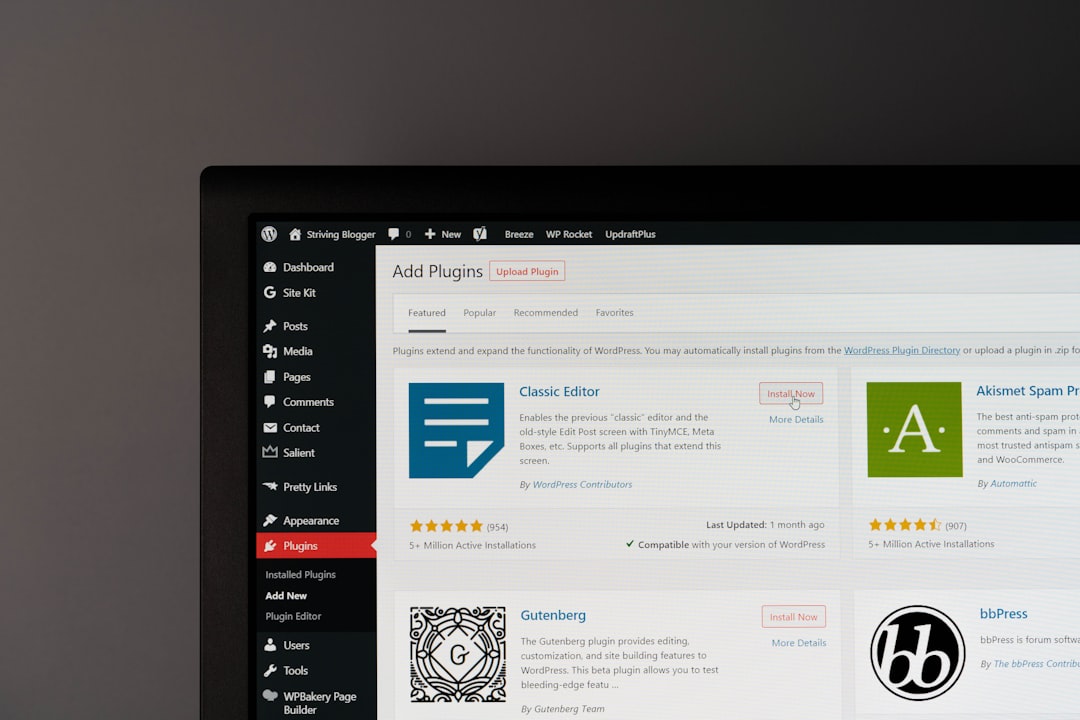
Before touching AMP, clean up the standard mobile page. This matters because Google mainly uses mobile content for indexing. If your normal mobile pages are already fast and stable, AMP may add little value.
Check these basics first:
- Use a responsive theme that works well on phones.
- Compress images and serve modern formats such as WebP where possible.
- Limit heavy plugins, especially sliders, popups, page builders, and ad scripts.
- Enable caching through your host or a trusted caching plugin.
- Check Core Web Vitals in Google Search Console and PageSpeed Insights.
It drives me crazy that many site owners install AMP before fixing a 3 MB hero image. That usually adds another layer to maintain, but the real problem stays untouched. Fix the obvious weight first.
Configure Yoast SEO before enabling AMP
Yoast should be your control center for search appearance. Set it up carefully, because AMP pages should inherit the same SEO intent.
Focus on these areas:
- Search appearance: Set title templates for posts, pages, categories, and archives. Keep titles readable. Do not stuff keywords.
- Meta descriptions: Write concise summaries for key pages. For lower value posts, a sensible template is fine.
- Schema: Choose the correct site type, organization or person details, and page types. Articles should be marked as articles. Product pages need product data from your commerce plugin.
- XML sitemaps: Keep sitemaps enabled. Exclude thin archives, tag pages, or internal search pages if they do not deserve indexing.
- Breadcrumbs: Use them if your theme supports them. They help users and can support clearer site structure in search.
After this, check a few source pages. Confirm that Yoast outputs one canonical URL per page. The canonical should point to the main WordPress URL, not a random parameter version.
Choose the right AMP mode
The official WordPress AMP plugin is the usual starting point. It offers modes such as Standard, Transitional, and Reader. Names and options can change over time, so check the plugin documentation before a production rollout.
- Standard mode: Your entire site uses AMP-compatible output. This can be clean, but it requires a compatible theme and plugins.
- Transitional mode: The site serves both standard and AMP versions. This is common, but it requires more quality control.
- Reader mode: AMP pages use simplified templates. This can be safer for older themes, but the design may feel separate from your main site.
For most content sites, Transitional or Reader mode is easier to test. For a new lightweight site, Standard mode may work well. Do not guess. Test key templates before you switch AMP on for hundreds of URLs.
Make Yoast and AMP work together
Modern Yoast SEO and AMP plugins usually coordinate better than older setups. Still, you need to verify the output. Do not assume the plugins agree just because no error appears in WordPress.
Check these items on several AMP URLs:
- Canonical tag: The AMP page should point back to the original non-AMP URL as canonical.
- AMP HTML link: The canonical page should reference the AMP version with a rel=”amphtml” link when a separate AMP URL exists.
- Title and meta description: They should match your Yoast settings unless you made a clear choice otherwise.
- Structured data: Article schema, author data, dates, images, and publisher data should be present and valid.
- Index rules: If a page is noindex in Yoast, its AMP version should not become indexable by accident.
Use Google’s Rich Results Test and the AMP Test. Then inspect the URL in Google Search Console. If the tools disagree, trust the live rendered result over what you hoped the plugin would output.
Protect analytics, ads, and forms
AMP changes how scripts run. That affects analytics, ads, embeds, consent banners, email forms, and affiliate widgets. Expect to waste time on tracking. A tag that took two minutes to add on a normal WordPress page may take twenty minutes on AMP because the component must be allowed and configured correctly.
For analytics, use AMP-compatible tags. If you use Google Analytics 4, confirm that AMP traffic appears under the correct property and does not inflate sessions. Compare landing page reports before and after launch. A sudden 35% drop in tracked mobile sessions may mean broken measurement, not lost traffic.
For ads, check layout stability. Ads that load late can push text down and hurt user experience. For email forms, test submissions on real phones. Many AMP issues only show up after a user tries to tap, scroll, or submit.
Keep content and design consistent
AMP pages should not feel like a low-quality copy. Keep the main heading, body content, author byline, date, images, internal links, and calls to action aligned with the normal page. If your canonical page has a buying guide, the AMP page should not show only a short excerpt.
Also check visual trust signals. On mobile search traffic, users make quick judgments. Your AMP templates should show branding, author names, update dates, privacy links, and clear menus. A fast page that looks unfinished can still lose readers.

Measure results after launch
Do not judge AMP after one day. Use a clean test period. Four to eight weeks is better for most sites.
Track these metrics:
- Mobile organic clicks in Google Search Console.
- Average mobile position for key queries.
- Click through rate for pages with updated titles and descriptions.
- Largest Contentful Paint and Cumulative Layout Shift.
- Engagement, including scroll depth, conversions, and ad revenue.
If AMP improves speed but conversion rate drops, review the template. If speed barely changes, disable AMP on low-value templates and focus on normal mobile performance. Google no longer requires AMP for eligibility in Top Stories, so the business case must come from speed, stability, and user results.
A practical rollout plan
Start small. Pick 20 to 50 high-traffic posts. Configure Yoast first. Enable AMP for those content types. Validate URLs. Check schema. Confirm tracking. Compare mobile search data before and after the change.
If errors stay low and users respond well, expand to more posts. Keep pages, product URLs, and complex landing pages out of AMP until you test their forms, scripts, and revenue paths. Serious SEO work is not about switching on every feature. It is about sending clean signals, serving fast pages, and removing anything that gets in the user’s way.