 logo


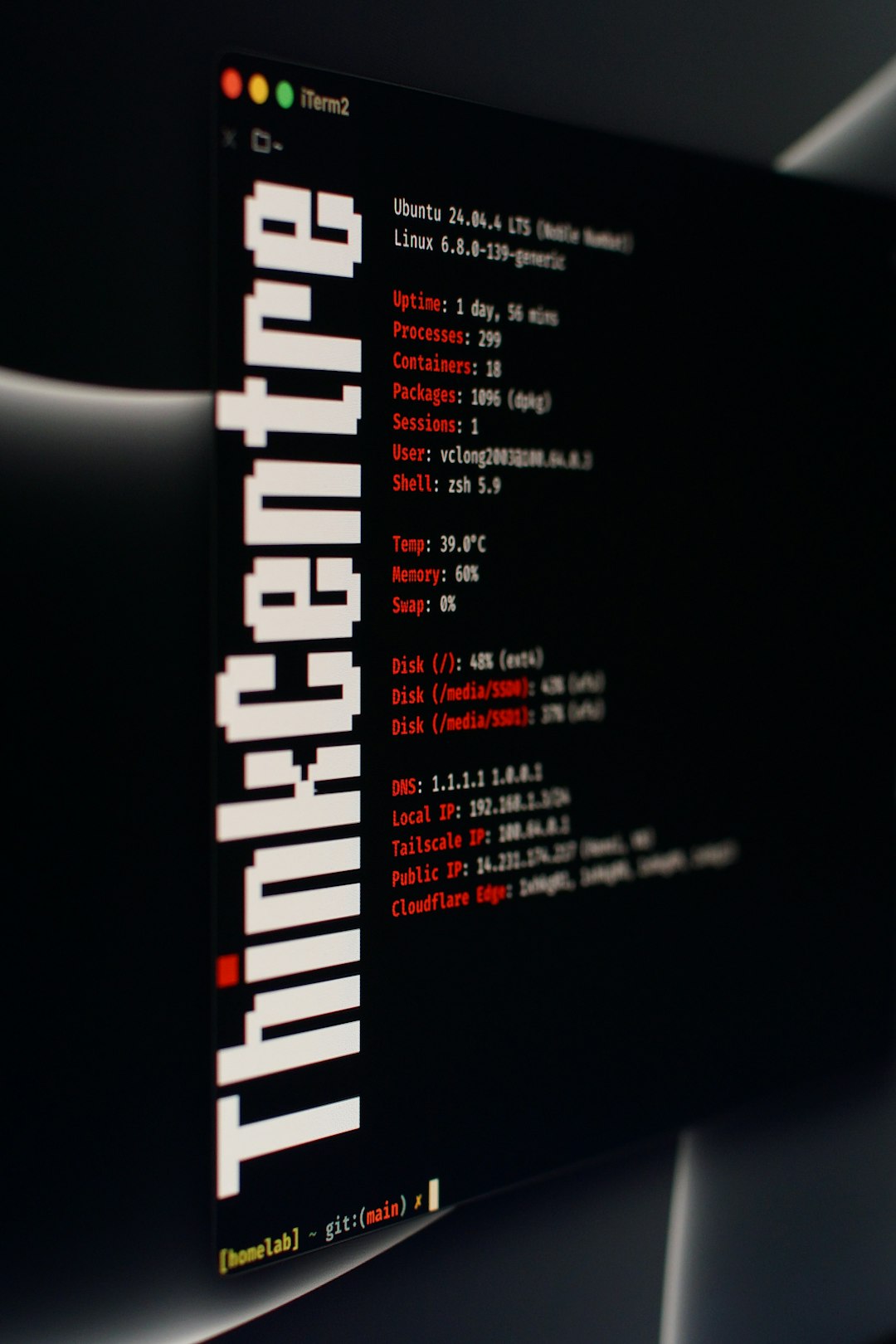
Use cat /etc/os-release first when you need to display the Ubuntu version, then confirm with lsb_release -a or hostnamectl if the system has those tools installed. The same files and commands work on Debian, but the output means slightly different things because Ubuntu uses fixed release cycles and Debian separates stable, testing, and unstable branches.
TLDR: On Ubuntu, run cat /etc/os-release to see values such as VERSION="24.04.1 LTS (Noble Numbat)". On Debian, the same command may show VERSION="12 (bookworm)", which identifies the Debian release and codename. In a support team handling 200 Linux servers, this single command can cut version checks from several minutes per host to under 10 seconds. If you are writing scripts, read /etc/os-release instead of scraping random command output.
Best Command to Display Ubuntu Version
The most reliable command is:
cat /etc/os-releaseTypical Ubuntu output looks like this:
PRETTY_NAME="Ubuntu 24.04.1 LTS"
NAME="Ubuntu"
VERSION_ID="24.04"
VERSION="24.04.1 LTS (Noble Numbat)"
VERSION_CODENAME=noble
ID=ubuntu
ID_LIKE=debian
The key fields are PRETTY_NAME, VERSION_ID, and VERSION_CODENAME. These tell you the human-readable release, the numeric version, and the codename. For Ubuntu support, security checks, and package troubleshooting, these three values usually answer the question.

Why this command works well:
- It is usually present by default. No extra package is needed.
- It is script friendly. The file uses key and value pairs.
- It works on Ubuntu and Debian. That makes it useful across mixed fleets.
- It avoids guesswork. You do not need to infer the version from kernel data.
Other Ubuntu Version Commands
You can also use:
lsb_release -aExample output:
Distributor ID: Ubuntu
Description:    Ubuntu 22.04.5 LTS
Release:        22.04
Codename:       jammy
This is clean and easy to read. The catch is that lsb_release may not be installed on minimal containers or stripped-down cloud images. It drives me crazy that a command often recommended in old guides can be missing exactly when you need it during a production incident.
Another option is:
hostnamectlThis can show the operating system, kernel, architecture, and machine details:
Operating System: Ubuntu 24.04.1 LTS
Kernel: Linux 6.8.0-45-generic
Architecture: x86-64
hostnamectl is helpful on systems using systemd. It is less ideal for portable scripts because some containers, recovery environments, and older systems may not expose the same data.
Ubuntu vs Debian: What Changes When Checking Versions?
Ubuntu is based on Debian, so many version checks look the same. That does not mean the result should be read the same way.
On Debian, the command:
cat /etc/os-releasemay return:
PRETTY_NAME="Debian GNU/Linux 12 (bookworm)"
NAME="Debian GNU/Linux"
VERSION_ID="12"
VERSION="12 (bookworm)"
VERSION_CODENAME=bookworm
ID=debian
On Ubuntu, ID_LIKE=debian tells you Ubuntu belongs to the Debian family. It does not mean the system is Debian. This matters when installing packages, adding repositories, or following vendor documentation. A repository built for Debian 12 may not be safe on Ubuntu 24.04, even if both use apt.
Ubuntu version numbers use a year and month format. For example, Ubuntu 24.04 was released in April 2024. Long Term Support releases use LTS and receive longer support windows.
Debian version numbers are sequential. Debian 12 is bookworm. Debian 11 is bullseye. Debian also has branches such as stable, testing, and unstable. That branch model is a major difference from Ubuntu’s more fixed release naming.
Do Not Use Kernel Version as the Distribution Version
Many users run this command:
uname -aIt shows the Linux kernel version, not the Ubuntu or Debian release. That distinction matters. A system can run Ubuntu 22.04 with a newer hardware enablement kernel. A Debian server can also run a custom kernel. If you use uname alone, you may identify the kernel correctly and the operating system incorrectly.
Use uname -r only when you need the kernel version:
uname -rFor distribution version checks, stick with /etc/os-release.

Recommended Checks for Different Situations
Use these commands based on the job at hand:
- Quick human check:
cat /etc/os-release - Readable desktop or server output:
lsb_release -a - Systemd host summary:
hostnamectl - Kernel only:
uname -r - Debian package base check:
cat /etc/debian_version
/etc/debian_version exists on Debian and often appears on Ubuntu too. On Ubuntu, it may show a Debian base version, not the Ubuntu release. That can confuse people. If you are trying to display the Ubuntu version, /etc/debian_version is the wrong source.
Script Friendly Method
For automation, source the /etc/os-release file and read specific variables:
. /etc/os-release
echo "$NAME"
echo "$VERSION_ID"
echo "$VERSION_CODENAME"
This gives a cleaner result than parsing blocks of text. A script can test ID before running distribution-specific commands:
. /etc/os-release

if [ "$ID" = "ubuntu" ]; then
  echo "Ubuntu $VERSION_ID detected"
elif [ "$ID" = "debian" ]; then
  echo "Debian $VERSION_ID detected"
else
  echo "Unsupported distribution: $ID"
fi
This is safer than assuming every apt based system behaves the same. Honestly, it feels like a small detail until an install script adds the wrong repository and wastes 20 minutes fixing broken package sources.
Common Mistakes
- Confusing Ubuntu with Debian. Ubuntu is Debian based, but it has its own releases, patches, repositories, and support policy.
- Trusting
unamefor OS version. It reports the kernel, not the distribution release. - Using old documentation blindly. Some guides still rely on
lsb_release, which may be absent. - Reading only the codename. Codenames are useful, but numeric versions are clearer in tickets and audits.
- Ignoring containers. Container images may have limited tools, but
/etc/os-releaseis still commonly available.
Practical Examples
If a vendor says its software supports Ubuntu 22.04 and Debian 12, verify before installing:
cat /etc/os-releaseIf the output says Ubuntu 20.04, do not assume compatibility. If it says Debian GNU/Linux 12, follow the Debian instructions, not the Ubuntu section.
For a support ticket, include:
- Distribution: Ubuntu or Debian
- Version: 22.04, 24.04, 11, or 12
- Codename: jammy, noble, bullseye, or bookworm
- Kernel: output from
uname -r, only if relevant

Final Recommendation
Use cat /etc/os-release as your default command to display the Ubuntu version. Use the same command on Debian, but read the values with care. Ubuntu release numbers point to year and month. Debian release numbers point to the project’s numbered release line.
For daily administration, this simple rule prevents most mistakes: distribution version comes from /etc/os-release; kernel version comes from uname. Keep those separate, and Ubuntu versus Debian checks become quick, accurate, and easy to document.