 logo
logo



Replay Mod is one of the best tools for turning Minecraft gameplay into cinematic shots, smooth camera paths, and polished videos. But there is one small problem that can feel surprisingly frustrating: your mouse gets “captured” by the game, leaving you unable to click the timeline, menus, or other replay controls. Knowing how to free your mouse in Replay Mod makes editing faster, especially when you are switching between camera movement and interface controls.
TLDR: To free your mouse in Replay Mod, first try pressing Esc, then check your Replay Mod keybinds for a mouse toggle or cursor release option. For example, if you are editing a 90-second Minecraft replay and need to adjust 12 camera keyframes, freeing the cursor can cut constant menu switching by several minutes. In most cases, the issue is caused by a conflicting keybind, fullscreen focus behavior, or a mod that also controls mouse input.
Why Replay Mod Locks Your Mouse
Replay Mod uses your mouse for camera control, just like normal Minecraft uses it to look around. When you are in a replay, the mod assumes you want to control the camera smoothly, so it captures the cursor and hides it. This is helpful when flying through a scene, but inconvenient when you want to click the replay timeline, settings buttons, or camera path editor.
In simple terms, there are two “modes” you are switching between:
- Camera control mode: the mouse moves the camera view.
- Interface mode: the mouse cursor is visible and can click buttons, sliders, and timeline controls.
The goal is to swap between these modes without accidentally breaking your shot or closing the replay viewer.
Method 1: Press Esc to Release the Mouse
The quickest solution is often the simplest: press Esc. In many Minecraft setups, this opens the pause or replay menu and releases the cursor so you can move it freely. From there, you can click interface elements, adjust options, or return to the replay.
This is especially useful if you are new to Replay Mod and only need occasional cursor access. However, it is not always the most efficient option, because opening the menu can interrupt your workflow. If you are repeatedly adjusting camera paths, keyframes, or replay speed, you will probably want a dedicated keybind instead.
Method 2: Check the Replay Mod Keybinds
Replay Mod usually adds its own keybinds to Minecraft’s controls menu. Depending on your Minecraft version, mod loader, and Replay Mod version, the exact name of the keybind may vary. Look for entries related to Replay Mod, mouse cursor, GUI, camera controls, or toggle mouse.
To check this:
- Open Minecraft and go to Options.
- Click Controls or Key Binds.
- Scroll until you find the Replay Mod section.
- Look for any control that toggles cursor, mouse, GUI, or replay controls.
- Assign it to a key that is easy to reach, such as R, V, or a side mouse button.
Tip: Avoid using keys already assigned to movement, inventory, chat, shaders, minimaps, or camera mods. A keybind conflict can make it seem like Replay Mod is broken when the real issue is that another function is intercepting the same key.
Method 3: Use the Replay Viewer Interface Correctly
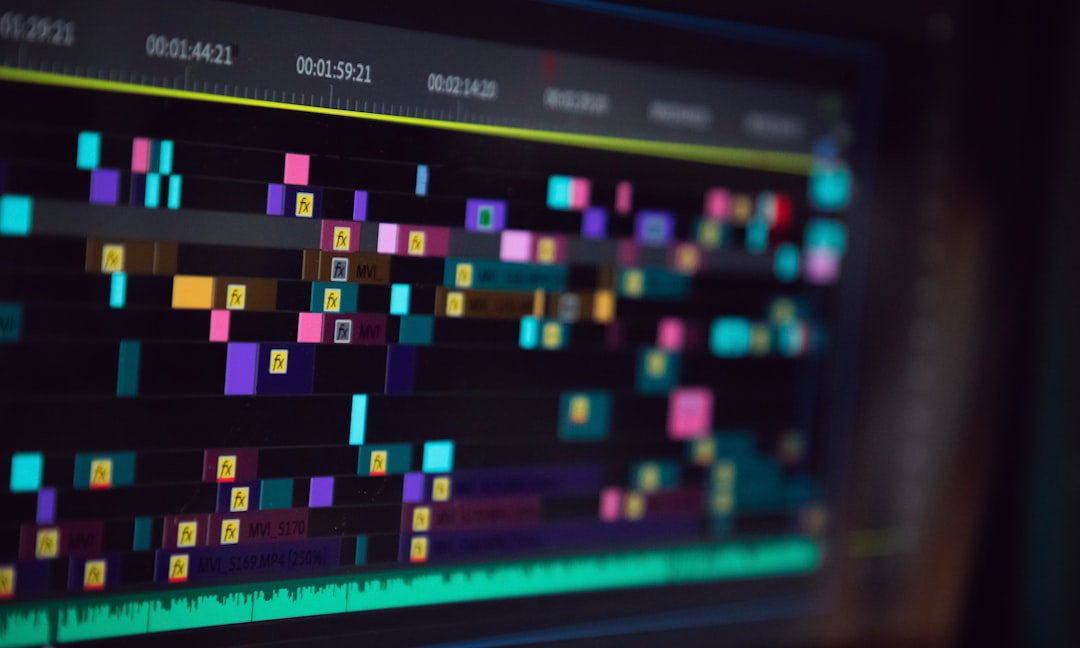
Replay Mod’s viewer includes controls for playback, speed, camera paths, and keyframes. If your cursor appears only when a specific panel is open, that may be normal behavior for your version. Some interfaces automatically grab or release your mouse depending on whether you are actively flying the camera or working inside a menu.
If you are editing a cinematic sequence, try this workflow:
- Use camera mode to move into position.
- Release the mouse with your chosen keybind or Esc.
- Click the timeline and set a position keyframe.
- Return to camera mode and move to the next shot.
- Repeat the process for rotation and time keyframes.
This rhythm keeps your editing organized and prevents accidental camera movement while you are clicking the UI.
Troubleshooting: Mouse Still Will Not Free
If pressing Esc or changing keybinds does not work, the issue is likely caused by a conflict or configuration problem. Here are the most common fixes.
1. Look for Keybind Conflicts
Open the controls menu and look for highlighted or duplicated keybinds. Minecraft usually marks conflicts in red or with a warning indicator. Pay special attention to mods such as:
- OptiFine or shader managers
- Minimap mods
- Camera or freecam mods
- Inventory management mods
- Controller support mods
If another mod uses the same key, change one of them. For Replay Mod editing, it is best to reserve a dedicated key that does not control movement, menus, or visual settings.
2. Test Windowed Mode Instead of Fullscreen
Fullscreen mode can sometimes make mouse focus behave strangely, especially when tabbing between Minecraft, recording software, Discord, or a browser. Try switching to windowed mode or borderless fullscreen if your launcher or operating system supports it.
This is a practical test: if your mouse frees correctly in windowed mode but not fullscreen, the issue is probably related to focus handling rather than Replay Mod itself.
3. Disable Conflicting Mods Temporarily
If you are using a heavily modded client, create a test profile with only the essentials: Minecraft, the required mod loader, Replay Mod, and its dependencies. Open a replay and test the mouse behavior again.
If the problem disappears, add your other mods back in small groups. This helps you identify the conflict without guessing. It may feel slow, but it is one of the most reliable troubleshooting methods.
4. Check Replay Mod and Minecraft Version Compatibility
Replay Mod is version-sensitive. A build designed for one Minecraft version may not behave correctly on another. Make sure your Replay Mod version matches your Minecraft version and mod loader. If you recently updated Minecraft, changed launchers, or switched from Forge to Fabric, reinstall the correct Replay Mod release.
Also check whether your installation uses additional libraries required by your version. Missing or outdated dependencies can cause odd behavior, including interface problems.
Best Settings for Smooth Replay Editing
Once your mouse is freeing correctly, a few settings can make Replay Mod much more comfortable to use.
- Lower mouse sensitivity: smoother movement makes cinematic camera paths easier.
- Use a unique cursor toggle key: choose a key you will not press accidentally.
- Keep GUI scale readable: a too-small interface makes timeline editing harder.
- Use windowed mode while editing: this can help if you switch between apps often.
- Save camera paths frequently: do not wait until the entire shot is finished.
For creators who edit often, a mouse side button can be excellent for toggling cursor access. It lets you keep one hand on movement keys while quickly switching between camera control and interface control.
Common Mistakes to Avoid
One common mistake is assuming the replay file is corrupted because the mouse will not move freely. In most cases, the replay is fine; the cursor is simply being captured by Minecraft. Another mistake is assigning the toggle to a key already used by a shader menu, minimap, or voice chat mod.
It is also easy to confuse camera movement with cursor movement. If moving the mouse turns the camera, the game is capturing input. If you can see the pointer and click buttons, the mouse is free. Knowing the difference helps you diagnose the problem faster.
Final Thoughts
Freeing your mouse in Replay Mod is mostly about understanding how Minecraft handles focus and how Replay Mod switches between camera and interface control. Start with Esc, then set a reliable keybind, remove conflicts, and test fullscreen behavior if needed. Once the cursor toggle feels natural, Replay Mod becomes much easier to use, letting you focus on cinematic timing, smooth camera paths, and better storytelling instead of fighting the interface.