 logo
logo



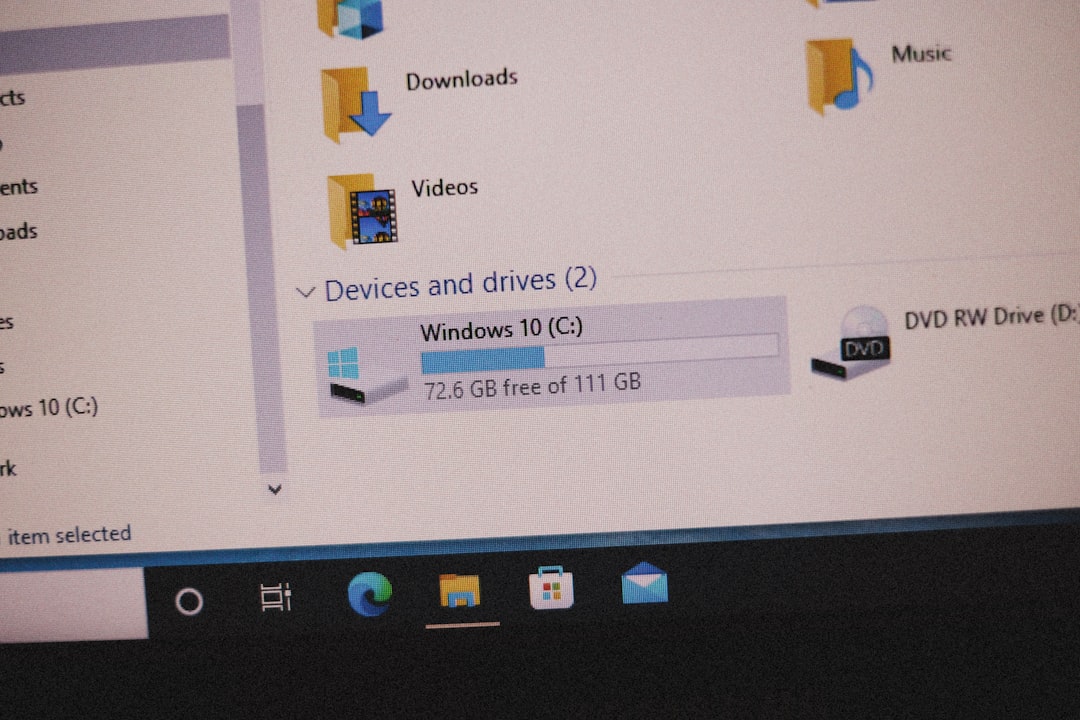
Many Windows users eventually discover a large hidden file on their system drive named hiberfil.sys. It often appears when disk space starts running low, raising questions about what it does and whether it is safe to remove. Understanding this system file can help users make informed decisions about performance, storage, and power management features in Windows.
TLDR: hiberfil.sys is a system file used by Windows to support Hibernate and Fast Startup features. It stores the contents of memory so your computer can resume quickly after shutdown or hibernation. You can delete it, but only by disabling Hibernate, which may also disable Fast Startup. Removing it can free up several gigabytes of disk space, especially on smaller SSDs.
What Is hiberfil.sys?
hiberfil.sys is a hidden system file located in the root of the Windows system drive, typically C:\. It is created and managed by the Windows operating system and is essential for handling power-saving features, particularly Hibernate and Fast Startup.
When a computer enters Hibernate mode, Windows saves the contents of system memory (RAM) to the hiberfil.sys file. This includes open documents, running applications, system states, and drivers. When the computer is powered back on, Windows reloads this data into memory, allowing the user to resume exactly where they left off.
Unlike Sleep mode, which keeps data in RAM and requires a small amount of power, Hibernate completely powers off the system after saving the data to disk. This makes Hibernate particularly useful for laptops, as it preserves battery life while retaining the session state.
How Big Is hiberfil.sys?
The size of hiberfil.sys depends on the amount of RAM installed in the computer. In most systems, the file size is approximately 40% to 75% of the total installed RAM.
- A system with 8 GB of RAM may have a hiberfil.sys file between 3–6 GB.
- A system with 16 GB of RAM may use 6–12 GB for hiberfil.sys.
- High-performance systems with 32 GB or more RAM can have very large hibernation files.
This substantial size is why many users notice the file when trying to reclaim disk space. On systems with smaller SSD drives (128 GB or 256 GB), reclaiming several gigabytes can be significant.
What Features Use hiberfil.sys?
hiberfil.sys is tied to two main Windows features:
1. Hibernate
Hibernate saves the full system state to disk and completely shuts down the computer. When restarted, it restores everything to its previous condition.
2. Fast Startup
Fast Startup is enabled by default in modern versions of Windows. It works similarly to Hibernate but only saves core system files and drivers instead of the entire RAM contents. This allows Windows to boot faster after shutdown.
If Hibernate is disabled, Fast Startup is typically disabled as well because it relies on the same hibernation file mechanism.
Can You Delete hiberfil.sys?
Technically, yes — but not by manually deleting it.
Because hiberfil.sys is a protected system file, it cannot simply be selected and removed like a regular file. Attempting to delete it manually will usually result in an error.
To remove hiberfil.sys properly, Hibernate must be disabled through the Windows command line.
How to Disable Hibernate
- Open the Start Menu.
- Search for Command Prompt.
- Right-click and choose Run as administrator.
- Type the following command and press Enter:
powercfg -h off
Once executed, Windows will automatically delete the hiberfil.sys file and disable Hibernate (and Fast Startup).
If the user later wants to restore Hibernate, they can enter:
powercfg -h on
Advantages of Keeping hiberfil.sys
There are several benefits to leaving the file enabled:
- Faster boot times via Fast Startup.
- Power-saving convenience for laptop users.
- Session recovery after battery drain.
- State preservation for long-running tasks.
For users who frequently travel or use laptops in varying environments, Hibernate can be more reliable than Sleep mode.
Advantages of Deleting hiberfil.sys
On the other hand, disabling Hibernate and removing hiberfil.sys also offers benefits:
- More available disk space, especially on small SSDs.
- Cleaner shutdown behavior for dual-boot systems.
- Fewer file conflicts when accessing Windows partitions from other operating systems.
- Slightly simplified system configuration.
Power users who rarely use Hibernate may not miss the feature and will benefit from the reclaimed storage.
Is It Safe to Delete hiberfil.sys?
Yes, it is safe — as long as Hibernate is disabled properly.
The file does not contain personal user data in a traditional sense; it only stores system memory snapshots used during hibernation. Removing it does not affect personal files, installed programs, or system stability when done correctly.
However, users should consider the following before deleting it:
- Do they rely on Fast Startup?
- Do they frequently use Hibernate?
- Do they dual-boot with Linux or another OS?
- Is disk space critically low?
Can You Reduce the Size Instead of Deleting It?
Windows allows users to reduce the size of hiberfil.sys rather than removing it entirely. This is helpful for users who want Fast Startup but do not use full Hibernate.
To reduce the file size:
- Open Command Prompt as administrator.
- Enter: powercfg /h /type reduced
This setting keeps Fast Startup enabled but removes full Hibernate functionality, reducing the file size significantly.
Hibernate vs Sleep: Quick Comparison
| Feature | Sleep | Hibernate |
|---|---|---|
| Power Usage | Low | None |
| Resume Speed | Very Fast | Fast |
| Uses hiberfil.sys | No | Yes |
| Data Stored In | RAM | Disk |
| Battery Drain Risk | Yes | No |
When Should You Delete hiberfil.sys?
Deleting hiberfil.sys makes sense in specific scenarios:
- The system drive is very small and low on space.
- Hibernate is never used.
- The computer is a desktop that rarely loses power unexpectedly.
- The user prefers a fully clean shutdown process.
It may not be ideal for:
- Laptop users who rely on extended battery life.
- Professionals working with many open applications at once.
- Users who value quick startup speeds.
Common Misconceptions About hiberfil.sys
- It is a virus. False — it is a legitimate Windows system file.
- It can be safely deleted like a normal file. False — it must be disabled via command line.
- It improves system performance. Not directly — it improves boot and recovery speed.
- It is necessary for Sleep mode. False — Sleep uses RAM, not hiberfil.sys.
Final Thoughts
hiberfil.sys plays a critical role in Windows power management. While it can occupy a considerable amount of disk space, it provides valuable functionality for faster startup and session restoration. For users with limited storage or no need for Hibernate, disabling it can be a practical way to reclaim space.
Ultimately, the decision depends on how the computer is used. Laptop users may benefit from keeping it, while desktop users with tight storage constraints might prefer to disable it. Understanding what hiberfil.sys does ensures that any action taken is informed and safe.
Frequently Asked Questions (FAQ)
-
Is hiberfil.sys a virus?
No. It is a legitimate and essential Windows system file used for Hibernate and Fast Startup features. -
Why is hiberfil.sys so large?
Its size is based on the amount of installed RAM, since it stores memory data when the system hibernates. -
Will deleting hiberfil.sys make my computer faster?
Not necessarily. It may slightly slow boot times if Fast Startup is disabled. -
Can I move hiberfil.sys to another drive?
No. Windows requires the file to remain on the system drive. -
Does disabling Hibernate affect Sleep mode?
No. Sleep mode functions independently and does not rely on hiberfil.sys. -
Can I re-enable hiberfil.sys after deleting it?
Yes. Running powercfg -h on in an elevated Command Prompt restores the file and reenables Hibernate.
