 logo
logo


If your MSI PC is showing a DisplayPort incorrect error, don’t panic. This common issue can look alarming—especially when your monitor suddenly says “No Signal” or “DisplayPort Incorrect”—but in most cases, it’s completely fixable. Whether you’re using an MSI gaming desktop, motherboard, or monitor, the problem usually comes down to a connection issue, configuration mismatch, or a small hardware fault.
TLDR: An MSI DisplayPort incorrect error is usually caused by a loose cable, incorrect input source, outdated graphics driver, or BIOS setting misconfiguration. Start by checking your cable and monitor input settings, then update your GPU drivers and ensure the correct graphics output is enabled in BIOS. In most cases, the fix takes less than 20 minutes and doesn’t require professional repair. If that doesn’t work, testing with a new cable or different port often resolves the issue.
What Does the MSI DisplayPort Incorrect Error Mean?
When your monitor shows a DisplayPort incorrect, No DisplayPort signal, or similar message, it means the monitor is not receiving proper video data from your PC through the DisplayPort cable. This doesn’t necessarily mean something is broken—it simply means communication between devices has failed.
The issue can come from:
- Loose or damaged DisplayPort cable
- Wrong monitor input selected
- Outdated or corrupted GPU drivers
- Incorrect BIOS settings
- Graphics card seating issues
- Monitor firmware glitches
Let’s walk through each potential fix step by step.
1. Check Your DisplayPort Cable First
This might sound obvious, but cable problems are the most common cause of the error.
What to Do:
- Unplug the DisplayPort cable from both the PC and monitor.
- Wait 30 seconds.
- Plug it back in firmly until it clicks.
- Inspect the cable for bent pins or physical damage.
If possible, test with:
- A different DisplayPort cable
- A different DisplayPort port on your GPU
- A different monitor (if available)
Pro Tip: Cheap or very long DisplayPort cables are more prone to signal loss. If your cable is older, upgrading to a certified high bandwidth DisplayPort 1.4 or 2.0 cable can solve intermittent errors.
2. Confirm the Correct Input Source on Your Monitor
Many MSI monitors allow multiple inputs like HDMI, DisplayPort, USB-C, and DVI. If the monitor is set to the wrong source, you’ll see an error even if the cable is fine.
How to Check:
- Press the monitor’s menu button.
- Go to Input Source.
- Select DisplayPort manually.
Some monitors have auto-detect enabled, but manual selection often resolves detection issues instantly.
3. Power Cycle Everything
A simple power cycle can reset connection handshakes between devices.
Follow These Steps:
- Turn off your PC completely.
- Turn off your monitor.
- Unplug both from power outlets.
- Hold the PC power button for 10–15 seconds.
- Wait 2 minutes.
- Plug everything back in and restart.
This clears residual electrical charge and resets communication protocols between the GPU and monitor.
4. Check Your Graphics Card Connection
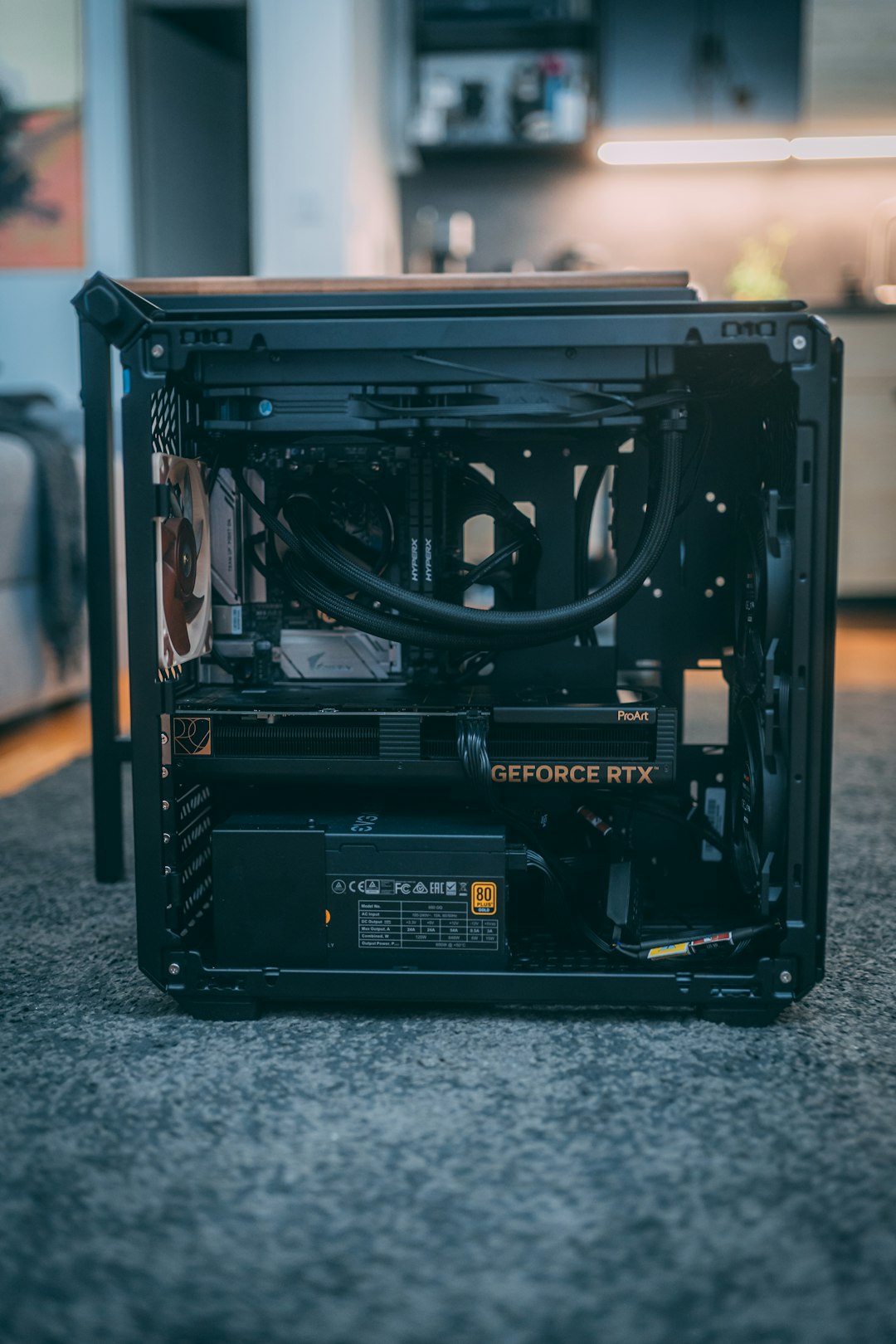
If you built your own MSI PC or recently moved it, your graphics card might not be seated properly.
How to Verify:
- Turn off and unplug your PC.
- Open the case carefully.
- Remove and reseat the graphics card.
- Make sure PCIe power connectors are fully inserted.
A loosely seated GPU can partially work but fail to output signal through specific ports.
5. Update or Reinstall Graphics Drivers
Outdated or corrupted drivers can cause DisplayPort communication failures, especially after a Windows update.
If You Can Access Windows:
- Open Device Manager.
- Expand Display Adapters.
- Right-click your GPU.
- Select Update Driver.
For best results:
- Download the latest drivers directly from NVIDIA, AMD, or Intel.
- Perform a clean installation if possible.
Advanced Tip: If the issue started after a recent update, try rolling back to a previous stable driver version.
6. Adjust BIOS Settings (Integrated vs Dedicated Graphics)
If you’re using an MSI motherboard with both integrated graphics and a dedicated GPU, BIOS settings may be forcing output to the wrong device.
How to Check in BIOS:
- Restart your PC.
- Press Delete repeatedly during boot.
- Enter BIOS settings.
- Look for Primary Display Adapter or similar option.
- Set it to PCIe if using a graphics card.
Save changes and exit.
This ensures your MSI PC outputs video through your GPU’s DisplayPort rather than the motherboard output.
7. Disable DisplayPort Deep Sleep (Monitor Setting)
Some MSI monitors include a Deep Sleep or power-saving feature that can interfere with DisplayPort detection.
Steps:
- Open the monitor menu.
- Navigate to Power Settings.
- Disable Deep Sleep mode.
This prevents the monitor from failing to wake properly after sleep mode.
8. Check Resolution and Refresh Rate Compatibility
If your GPU is outputting a resolution or refresh rate outside your monitor’s supported range, it may trigger a DisplayPort error.
How to Fix:
- Right-click desktop → Display Settings.
- Select Advanced Display.
- Lower the refresh rate temporarily.
- Set resolution to native monitor resolution.
Extreme refresh rates (like 240Hz+) require high quality cables and compatible GPU drivers.
9. Test with HDMI Temporarily
If DisplayPort continues to fail, switch to HDMI temporarily.
If HDMI works perfectly:
- Your monitor is likely fine.
- Your GPU is probably functioning.
- The issue is isolated to DisplayPort specifically.
This narrows troubleshooting significantly.
10. Reset Monitor to Factory Settings
Occasionally, internal monitor firmware glitches can cause incorrect port detection.
To Reset:
- Open monitor menu.
- Select Settings.
- Choose Factory Reset.
This eliminates corrupted internal configurations.
When It Might Be Hardware Failure
If none of the fixes work, you may be dealing with:
- A defective DisplayPort port on the GPU
- A faulty DisplayPort input on the monitor
- A damaged motherboard PCIe slot
To confirm, test components individually using another system if possible.
Warning Signs of Hardware Failure:
- Port feels loose or physically damaged
- Error persists across multiple cables
- Artifacts appear before signal loss
- System crashes during graphics load
In these cases, contacting MSI support or using warranty service may be necessary.
Preventing Future DisplayPort Errors
Once the problem is fixed, you can avoid future issues with a few preventive steps.
- Use certified, high quality cables.
- Avoid hot-plugging repeatedly.
- Keep GPU drivers updated regularly.
- Disable unnecessary power saving features.
- Ensure your PC has stable power through a surge protector.
Regular maintenance goes a long way in preventing connectivity errors.
Final Thoughts
An MSI PC DisplayPort incorrect error can feel frustrating—especially when your screen goes black right before gaming or important work. Thankfully, in most cases, the cause is minor and easy to fix. A loose cable, wrong monitor input, or outdated driver accounts for the majority of reported issues.
By methodically checking connections, power cycling devices, confirming BIOS settings, and updating drivers, you can usually resolve the error quickly without replacing expensive hardware. And if it does turn out to be a faulty port, isolating the issue early saves you time and guesswork.
The key takeaway? Don’t assume the worst. Start simple, work step-by-step, and you’ll likely have your MSI display back up and running in no time.
