 logo
logo




If your Xbox Series X turns on but your TV shows “No Signal”, a blank screen, flickering, or an unsupported format message, the problem is usually related to the HDMI connection, TV input, video resolution, refresh rate, or display handshake between the console and the television. In most cases, the console is not broken. The issue can often be fixed by checking the HDMI cable and port, resetting the display settings, or adjusting video output options so the Xbox and TV can communicate correctly.
TLDR: Start by confirming that the HDMI cable is firmly connected to the Xbox Series X HDMI OUT port and the correct HDMI input on your TV. Then power cycle both the console and the TV, try a different HDMI port or cable, and remove any receiver, soundbar, or capture card from the chain. If the screen is still blank, boot the Xbox in low-resolution mode and change the console’s display settings to match your TV’s supported resolution and refresh rate.
Why the Xbox Series X Shows “No Signal”
The Xbox Series X uses HDMI to send video and audio to your TV. When everything works properly, the console and TV perform a digital “handshake” that confirms supported features such as 4K resolution, HDR, 120Hz refresh rate, VRR, and HDCP. If that handshake fails, the TV may show No Signal, Unsupported Mode, a black screen, or intermittent signal loss.
This can happen after changing TVs, enabling 4K 120Hz, switching HDMI ports, updating firmware, using a faulty cable, or connecting through an AV receiver that does not fully support the required HDMI standard. The Xbox Series X is capable of high-bandwidth output, so even a small compatibility issue can prevent a stable image.
Step 1: Confirm the HDMI Cable Is Connected Correctly
Begin with the basics. The Xbox Series X has an HDMI OUT port. The cable must be connected from this port to an HDMI input on your TV. Do not connect the cable to another device’s output port, and do not confuse the TV’s HDMI inputs with any HDMI ARC or eARC labeling unless you are sure that port is also a regular input.
- Make sure the HDMI cable is fully inserted into the Xbox Series X.
- Check that the other end is firmly connected to the TV.
- Select the correct HDMI input using your TV remote.
- Inspect the HDMI port for dust, bent pins, looseness, or visible damage.
If the TV has multiple HDMI inputs, try each one. Some televisions reserve advanced features such as 4K 120Hz for specific ports, often labeled HDMI 2.1, Game, 4K, or 120Hz. However, for troubleshooting, do not focus on the highest-performance port first. The priority is to get any picture on screen.
Step 2: Use the Correct HDMI Cable
The Xbox Series X comes with an Ultra High Speed HDMI cable, which is designed for 4K at 120Hz and other high-bandwidth features. If you replaced it with an older or cheaper cable, that cable may work at 1080p but fail at 4K, HDR, or 120Hz.
Try the original Xbox cable if available. If not, use a certified Ultra High Speed HDMI cable, especially if you want to use 4K 120Hz. For testing, also try a short, known-good HDMI cable. Long HDMI cables, damaged cables, or cables routed through wall plates can introduce signal problems.
Important: A cable can appear fine physically and still fail under higher bandwidth. If the signal drops only when you enable 4K, HDR, or 120Hz, the cable should be considered a likely cause.
Step 3: Power Cycle the Xbox and TV
A temporary HDMI handshake failure can often be cleared with a full power cycle. Simply turning the TV off with the remote may not be enough, because many modern TVs remain in standby mode.
- Turn off the Xbox Series X by holding the power button on the console for about 10 seconds.
- Unplug the Xbox power cable from the wall outlet.
- Unplug the TV from power.
- Disconnect the HDMI cable from both devices.
- Wait at least 60 seconds.
- Reconnect the HDMI cable securely.
- Plug the TV back in and turn it on first.
- Select the correct HDMI input.
- Plug the Xbox back in and turn it on.
This sequence forces the TV and console to renegotiate the connection. It is a simple step, but it resolves many cases where the TV suddenly stops recognizing the console.
Step 4: Bypass Receivers, Soundbars, Switches, and Capture Cards
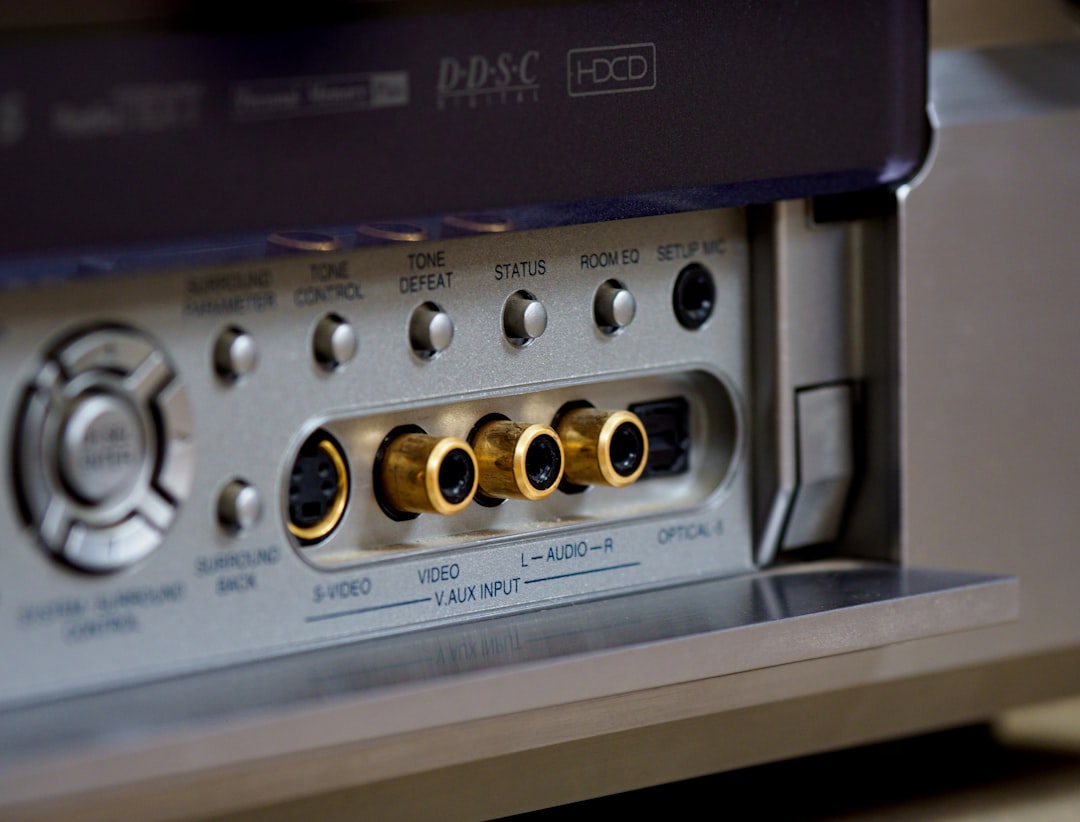
If your Xbox Series X is connected through an AV receiver, soundbar, HDMI switch, splitter, or capture card, remove that device temporarily. Connect the console directly to the TV. Intermediate devices are a common source of No Signal problems, especially when they do not support HDMI 2.1, HDCP 2.2, HDR, VRR, or 4K 120Hz pass-through.
If the Xbox works when connected directly to the TV, the console is likely fine. The issue is with the device in between, one of its HDMI ports, its settings, or its firmware. Check whether the receiver or soundbar supports the exact video format you are trying to use.
Step 5: Start the Xbox Series X in Low-Resolution Mode
If the Xbox is outputting a resolution or refresh rate your TV cannot display, the screen may remain black. The most reliable fix is to start the console in low-resolution mode. This forces the Xbox to output a basic video signal that most TVs can display.
To start the Xbox Series X in low-resolution mode:
- Make sure there is no disc in the console.
- Turn off the Xbox completely by holding the power button for about 10 seconds.
- Press and hold the Pair button on the console.
- While holding the Pair button, press the Power button.
- Continue holding the Pair button until you hear a second startup chime.
- Release the button and wait for the console to boot.
The Xbox should start in a lower display mode, often 640 x 480. The image may look blurry or stretched, but that is expected. Once you can see the dashboard, you can safely adjust the display settings.
Step 6: Adjust Resolution and Refresh Rate Settings
After getting a picture, open the Xbox display settings:
Settings > General > TV & display options
Start with conservative settings, then increase quality gradually. Choose 1080p or 4K UHD only if your TV supports it. Set the refresh rate to 60Hz first, even if your TV supports 120Hz. Once the signal is stable, you can test 120Hz later.
- Resolution: Use 1080p for troubleshooting, then switch to 4K UHD if supported.
- Refresh rate: Start with 60Hz before trying 120Hz.
- HDR: Disable temporarily if the image cuts out or looks incorrect.
- Allow 4K: Enable only after confirming your TV supports it.
- Allow variable refresh rate: Disable for testing if the signal is unstable.
Next, go to Video modes and temporarily uncheck advanced options such as Allow 4K, Allow HDR10, Auto HDR, Dolby Vision, and Allow variable refresh rate. Re-enable them one at a time to identify which feature causes the problem.
Step 7: Check Your TV’s HDMI Format Settings
Many modern TVs have HDMI mode settings that control whether a port supports standard or enhanced bandwidth. Depending on the brand, this setting may be called Enhanced HDMI, HDMI Ultra HD Deep Color, Input Signal Plus, 4K Enhanced Format, or HDMI Deep Color.
If enhanced mode is disabled, the TV may not accept 4K HDR or 120Hz from the Xbox. If enhanced mode is enabled but the cable or device chain cannot handle it, the signal may become unstable. For troubleshooting, try both modes if your TV allows it.
Also confirm that your TV firmware is up to date. TV manufacturers often release updates that improve HDMI compatibility, gaming features, HDR handling, and 120Hz support.
Step 8: Verify 4K, HDR, and 120Hz Compatibility
The Xbox Series X includes a useful compatibility screen. Go to:
Settings > General > TV & display options > 4K TV details
This screen shows what your TV reports as supported. If the Xbox says your TV does not support 4K at 120Hz, HDR10, Dolby Vision, or other features, do not force those settings. The TV, cable, or HDMI port may not support them, even if the TV’s marketing material suggests partial compatibility.
For example, some TVs support 4K 120Hz on only one or two HDMI ports. Others support 120Hz only at 1080p or 1440p. Some sets require a specific “Game Mode” or enhanced HDMI setting before advanced gaming features work correctly.
Step 9: Reset Display Settings from the Xbox Menu
If you can access the dashboard but display problems continue, reset or simplify the video configuration. Set the console to a basic output and rebuild from there.
- Go to Settings > General > TV & display options.
- Set resolution to 1080p.
- Set refresh rate to 60Hz.
- Open Video modes.
- Disable HDR, Dolby Vision, VRR, and 24Hz/50Hz options temporarily.
- Restart the console.
- Re-enable features one at a time and test stability.
This process helps isolate the specific display feature causing the signal failure. If the Xbox works perfectly at 1080p 60Hz but fails at 4K 120Hz, the likely causes are the HDMI cable, HDMI port, TV settings, or an unsupported device in the connection path.
Step 10: Check for Hardware Issues
If none of the display settings fix the issue, inspect the hardware carefully. Look at the Xbox HDMI port under good lighting. The port should be firm, centered, and free of debris. If the port feels loose, the cable falls out easily, or the pins appear damaged, the console may need repair.
Also test the TV with another device using the same HDMI port and cable. If another console, Blu-ray player, or streaming device also fails, the TV port or cable may be the problem. If the Xbox does not work on any TV with multiple known-good cables, the console’s HDMI output may be faulty.
Do not aggressively wiggle the HDMI cable or force it into the port. HDMI connectors are delicate, and physical damage can make the problem worse.
Common Fixes That Work Most Often
- Use the original Xbox Series X Ultra High Speed HDMI cable.
- Connect the Xbox directly to the TV instead of through a receiver or soundbar.
- Try a different HDMI port on the TV.
- Power cycle the Xbox and TV fully by unplugging both.
- Boot into low-resolution mode and change settings from the dashboard.
- Set the Xbox to 1080p 60Hz, then gradually enable 4K, HDR, and 120Hz.
- Update the TV firmware and enable the correct enhanced HDMI input mode.
When to Contact Support
If the Xbox Series X still shows no signal after testing multiple HDMI cables, multiple TV ports, low-resolution mode, and direct connection to another display, it may be time to contact Xbox Support or a qualified repair provider. This is especially true if the HDMI port is visibly damaged or the console was recently dropped, moved, or pulled while the cable was connected.
Before arranging service, document what you tested: cables, TVs, ports, low-resolution mode, and whether the console produces sound or controller vibration. Clear notes can speed up the support process and help determine whether the issue is with the console, TV, or accessories.
Final Thoughts
An Xbox Series X No Signal message is frustrating, but it is usually caused by a connection or display compatibility issue rather than a failed console. Work methodically: check the HDMI connection, simplify the setup, power cycle the devices, start in low-resolution mode, and then rebuild your display settings carefully. Once you identify the setting or device causing the problem, you can restore the best possible picture quality without sacrificing reliability.
