 logo
logo



Modern networks often appear effortless: a laptop joins Wi-Fi, a phone connects to a router, or a printer becomes available on an office network within seconds. Behind that convenience is a core networking service called DHCP, which automatically assigns the information devices need to communicate. Without it, many everyday networks would require far more manual setup and troubleshooting.
TLDR: DHCP, or Dynamic Host Configuration Protocol, automatically gives devices network settings such as IP addresses, gateway details, and DNS server information. It helps computers, phones, printers, and servers join a network without manual configuration. DHCP reduces errors, saves time, and makes networks easier to manage, especially when many devices connect and disconnect regularly.
What DHCP Means
DHCP stands for Dynamic Host Configuration Protocol. It is a network management protocol used to automatically assign IP configuration details to devices, also known as clients, on a network. These details usually include an IP address, a subnet mask, a default gateway, and one or more DNS servers.
An IP address acts like a device’s mailing address on a network. It allows routers, switches, and other devices to know where information should be sent. If every device had to be configured manually, network administrators would need to carefully assign addresses and ensure there were no duplicates. DHCP performs this task automatically and consistently.
Why DHCP Is Important
DHCP is important because networks are constantly changing. Employees bring laptops to the office, visitors join guest Wi-Fi, phones switch between networks, and Internet of Things devices connect in large numbers. Each device needs a valid address before it can communicate properly.
By using DHCP, an organization or home network can avoid common configuration problems. For example, if two devices receive the same IP address, an IP conflict can occur, causing one or both devices to lose connectivity. DHCP reduces this risk by keeping track of which addresses are available and which have already been assigned.
DHCP also makes network expansion easier. When a business adds new workstations or a school connects new tablets, the devices can obtain their settings automatically. This saves time and reduces the need for technical intervention.
How DHCP Works
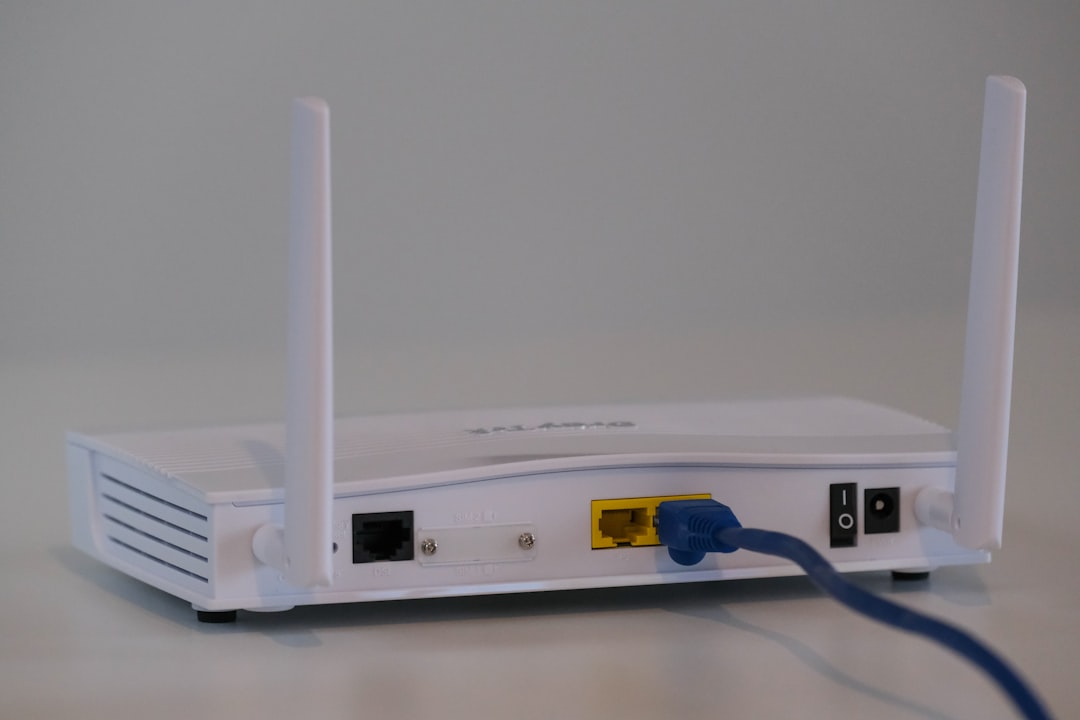
DHCP uses a structured process between a client device and a DHCP server. The server may be a dedicated computer, a network appliance, or a feature built into a router. In many home networks, the wireless router acts as the DHCP server.
The DHCP process is often described with four main steps:
- Discover: A device joins the network and broadcasts a request to find a DHCP server.
- Offer: The DHCP server responds with an available IP address and related network settings.
- Request: The device asks to use the offered address.
- Acknowledge: The server confirms the assignment, and the device begins using the address.
This process is sometimes called DORA, based on the first letters of the four steps. It usually happens very quickly, often before a user notices anything. Once complete, the device can access other local devices and, if allowed, the internet.
Key DHCP Components
Several components help DHCP function correctly. Understanding them makes it easier to see how DHCP fits into a network.
- DHCP server: The system that assigns IP addresses and network settings.
- DHCP client: The device requesting network configuration, such as a laptop, phone, or printer.
- IP address pool: A range of addresses the DHCP server can assign.
- Lease: A temporary assignment of an IP address to a client.
- Default gateway: The router address a device uses to reach other networks.
- DNS server: The server that translates domain names into IP addresses.
A lease is especially important. DHCP does not always give a device an IP address forever. Instead, it lends the address for a set period. When the lease nears expiration, the device can request renewal. If the device leaves the network and does not renew, the address eventually returns to the available pool.

DHCP in Home and Business Networks
In a home network, DHCP is usually enabled by default on the router. The router assigns addresses to smartphones, smart TVs, gaming consoles, tablets, and computers. Most users never need to adjust these settings unless they are troubleshooting or setting up advanced features.
In business networks, DHCP is often more complex. A company may use multiple DHCP servers, different address ranges for departments, and separate networks for employees, guests, phones, and security cameras. Administrators may also configure DHCP reservations, which allow a specific device to receive the same IP address every time it connects.
Reservations are useful for devices that need predictable addresses, such as printers, servers, point-of-sale systems, or security equipment. They combine the convenience of DHCP with some of the consistency of manual configuration.
DHCP vs. Static IP Addresses
DHCP assigns IP addresses automatically, while a static IP address is manually configured and does not change unless someone changes it. Both methods have a place in networking.
DHCP is best for devices that join and leave the network frequently. Phones, laptops, guest devices, and tablets are good examples. Static IP addresses are often used for devices that must remain easy to locate, such as servers, routers, firewalls, and some network printers.
However, using too many static IP addresses can create management problems. If documentation is poor, administrators may accidentally assign the same address to two devices. DHCP helps avoid this by managing address allocation centrally.
Common DHCP Problems
Although DHCP is reliable, problems can happen. A device may fail to receive an address if the DHCP server is offline, the address pool is exhausted, or a network cable or Wi-Fi connection is faulty. In such cases, a device may assign itself an automatic private address, often beginning with 169.254, which usually indicates it could not reach a DHCP server.
Another issue is an incorrectly configured DHCP server. If it gives out the wrong gateway or DNS settings, devices may connect to the local network but fail to access websites or external services. In larger networks, unauthorized DHCP servers can also cause trouble by handing out incorrect settings.
Security Considerations
DHCP was designed for convenience, not strong security. A network may need additional protections to prevent unauthorized devices from connecting or rogue DHCP servers from interfering. Business environments often use safeguards such as DHCP snooping, network access control, VLAN segmentation, and monitoring tools.
For home networks, basic security steps include using a strong Wi-Fi password, keeping router firmware updated, and disabling guest access when it is not needed. These measures help ensure that DHCP serves trusted devices rather than unknown ones.
Conclusion
DHCP is one of the quiet but essential technologies that makes networking practical. It automatically provides devices with the settings they need, reduces manual work, and prevents many common errors. From a small home Wi-Fi network to a large corporate environment, DHCP helps devices connect quickly and communicate reliably.
FAQ
What does DHCP stand for?
DHCP stands for Dynamic Host Configuration Protocol. It is used to automatically assign network settings to devices.
What does a DHCP server do?
A DHCP server provides devices with IP addresses and other settings, such as the subnet mask, default gateway, and DNS server addresses.
Is DHCP required for internet access?
DHCP is not strictly required, but it makes internet access much easier to configure. Without DHCP, devices usually need manual IP settings.
What is a DHCP lease?
A DHCP lease is the period of time a device is allowed to use an assigned IP address. The device can usually renew the lease automatically.
Should a printer use DHCP or a static IP address?
A printer can use DHCP, but many networks use a DHCP reservation or static IP address so the printer remains easy to find.
What happens if DHCP fails?
If DHCP fails, a device may not receive a valid IP address. It may lose network access or show limited connectivity until the issue is fixed.
