 logo
logo



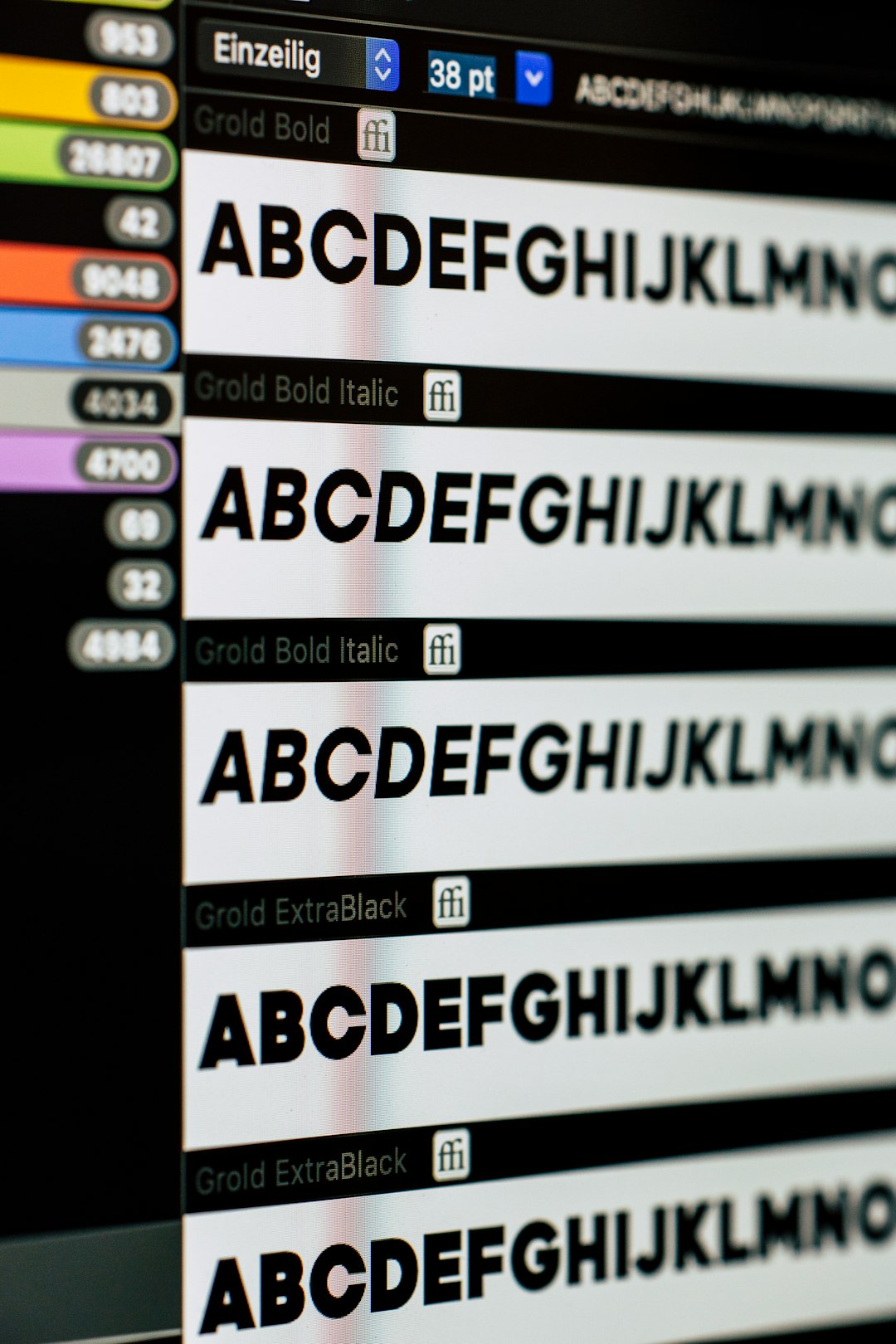
Your slide deck looks perfect. The title is bold. The captions are cute. The custom font has big main-character energy. Then you send it to someone else, and boom. The font changes. The layout breaks. Your beautiful slide now looks like it fell down the stairs. Good news: you can stop that chaos by embedding fonts in PowerPoint for Mac.
TLDR: To embed fonts in PowerPoint for Mac, open PowerPoint > Preferences > Save, then turn on Embed fonts in the file. Choose Embed all characters if other people need to edit the deck. If the option is missing, update PowerPoint or use a different font. Always test the file on another computer before sharing.
Why Fonts Go Missing
Fonts are like outfits for your words. Your slides may wear a fancy font on your Mac. But if another computer does not have that font, PowerPoint picks a substitute.
That substitute may be wider. Or taller. Or just plain weird. Text boxes can overflow. Bullets can jump. Lines can wrap in odd places. Suddenly, your clean slide looks messy.
Embedding fonts means PowerPoint saves the font data inside the presentation file. So the font travels with the deck. Like snacks in a suitcase.
This helps your deck look the same on another computer. It is very useful when you use:
- Custom brand fonts
- Downloaded fonts
- Decorative title fonts
- Special symbols or icons
- Layouts with tight spacing
Before You Start
First, make sure your version of PowerPoint supports font embedding. Newer versions of PowerPoint for Mac usually do. Older versions may not.
Here is the simple rule:
- If you use Microsoft 365, update PowerPoint first.
- If you use an older one-time version, check for updates.
- If you cannot find the setting, your version may not support it.
Also, not every font allows embedding. Some fonts are locked by the creator. PowerPoint must follow those rules. If a font has restricted permissions, it may not embed.
Do not panic. You still have options. We will get to those soon.
How to Embed Fonts in PowerPoint for Mac
Ready? This is the easy part.
- Open your presentation in PowerPoint for Mac.
- Click PowerPoint in the top menu bar.
- Choose Preferences.
- Click Save.
- Find the section called Font Embedding.
- Check Embed fonts in the file.
Now PowerPoint will save font data inside the deck.
You may see two choices:
- Embed only the characters used in the presentation
- Embed all characters
Pick the first option if people will only view the deck. It keeps the file smaller.
Pick Embed all characters if others need to edit the slides. This is safer. It lets them type more words in the same font.
For most team projects, choose Embed all characters. A slightly bigger file is better than a broken slide deck. Your future self will clap politely.
Save the File the Right Way
After you turn on font embedding, save your file as a regular PowerPoint file.
Use this format:
- .pptx
Avoid saving as older formats, like .ppt. Older formats can cause trouble. They may not keep modern settings in place.
Also, do not assume cloud sharing fixes everything. OneDrive, Dropbox, Google Drive, and email can move the file. But they do not magically install fonts on another computer. Embedding is what helps preserve the look.
How to Check If It Worked
Do a quick test before you send the deck to your boss, client, teacher, or very judgmental cat.
Try one of these checks:
- Open the file on another Mac.
- Open it on a Windows computer.
- Ask a teammate to open it.
- Make a copy and open it after removing the font from your system.
Look closely at your slides. Check titles. Check bullets. Check spots where text nearly touches the edge of a box.
If nothing moves, great. Your font is behaving.
If text shifts, the font may not have embedded. Or the receiving computer may not support it correctly.
What If the Font Embedding Option Is Missing?
If you do not see Embed fonts in the file, try these fixes.
- Update PowerPoint. Go to Microsoft AutoUpdate and install updates.
- Restart PowerPoint. Yes, the classic magic trick.
- Check your license. Some features depend on your version.
- Try another Mac. This helps confirm if the issue is local.
If the option still does not appear, use a workaround. That may sound boring. But it can save your deck.
Best Workarounds When Fonts Will Not Embed
Sometimes a font refuses to pack its suitcase. Here are smart ways around it.
1. Use a Safer Font
Choose a common font that most computers already have. Examples include Arial, Helvetica, Calibri, Aptos, Times New Roman, and Georgia.
This is not always exciting. But it is reliable. Reliable fonts are the plain toast of design. Not glamorous. Very useful.
2. Send the Font File
If your license allows it, send the font file with the presentation. Ask the other person to install it before opening the deck.
Be careful here. Many paid fonts have license rules. Do not share fonts unless you are allowed to.
3. Export as PDF
If people only need to view the slides, export the deck as a PDF. This keeps the visual layout much more stable.
Use this when you do not need animations, transitions, or editing.
4. Turn Text Into Images
For special headings or logo-style words, you can turn text into images. This freezes the look.
But use this carefully. Images are harder to edit. They may also look blurry if stretched.
Tips to Avoid Formatting Disasters
Font embedding is great. But good slide habits help too.
- Do not use too many fonts. Two is plenty.
- Leave extra room inside text boxes.
- Avoid tiny text. It is hard to read anyway.
- Use consistent font sizes.
- Test before presenting.
- Keep a PDF backup.
Also, avoid fonts with wild spacing for long paragraphs. Funky fonts are fun for titles. They are not fun for 50 words of body text. Your audience has eyes. Be kind to them.

Which Option Should You Choose?
Here is the quick guide.
- Only presenting? Embed only used characters.
- Sending to someone who will edit? Embed all characters.
- Using a paid custom font? Check the license.
- Need perfect viewing only? Send a PDF too.
- Working with a team? Use shared, approved fonts.
When in doubt, choose the safer path. Embed all characters. Test the file. Send a PDF backup. Then enjoy your peaceful slide life.
Final Thoughts
Embedding fonts in PowerPoint for Mac is a small step with a big payoff. It keeps your slides looking polished. It protects your layout. It saves you from mystery font drama.
Just remember the simple flow. Update PowerPoint. Go to Preferences. Open Save. Turn on Embed fonts in the file. Choose the right embedding option. Then test the deck.
Your fonts can now travel with your presentation. No surprises. No awkward spacing. No slide disasters. Just clean, happy slides doing their job.