 logo
logo


The fastest way to turn an email into a PDF is to open the message, choose Print, then select “Save as PDF” or “Microsoft Print to PDF” instead of a physical printer. This works in Gmail, Outlook, Apple Mail, and most webmail services. It keeps the message readable, preserves headers, and gives you a portable file you can store, send, or upload.
TLDR: For most people, the best method is Print > Save as PDF in Gmail or Outlook because it takes under a minute and needs no extra software. For example, a freelancer saving 20 client approval emails per month can create clean PDF records in about 15 minutes total. Outlook desktop gives more control, while Gmail is faster in the browser. If you need to include attachments, save or print those separately unless your tool supports full email archiving.
Why Turn an Email Into a PDF?
Email is messy. Threads get buried. Accounts change. Search works until it does not. A PDF gives you a fixed record that is easier to file, share, and print.
People commonly convert emails to PDF for:
- Receipts and invoices for tax records.
- Legal or HR communication that needs a stable copy.
- Client approvals for designs, contracts, quotes, or edits.
- Travel bookings such as flights, hotels, and insurance.
- Support tickets where dates and replies matter.
The catch is that email apps all handle this slightly differently. Some save only the visible message. Some include long threads. Some mangle spacing in a way that makes a neat email look like it was printed through a fax machine in 2004.
Method 1: Convert a Gmail Email to PDF
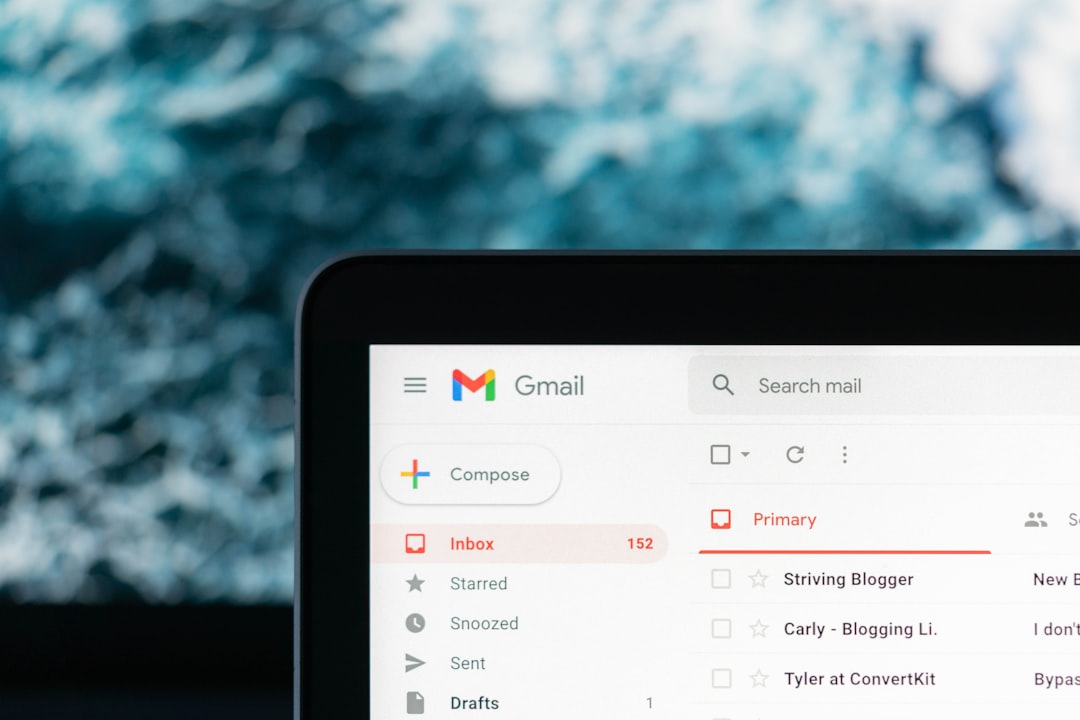
Gmail has one of the simplest routes. You do not need an extension. You do not need to download the email first.
- Open Gmail in your browser.
- Open the email you want to save.
- Click the three dots near the top right of the message.
- Select Print.
- In the print window, choose Save as PDF as the destination.
- Click Save.
- Name the file and choose a folder.
This method is quick and clean. It usually captures the sender, recipient, subject line, date, and message body. If the email is part of a thread, Gmail may print the whole conversation or the selected message depending on where you click print.
Best for: receipts, confirmations, simple email records, one-off messages.
Annoyance: Gmail sometimes expands quoted text or trims it with “show trimmed content.” If key text is hidden, click the small dots in the email before printing. Otherwise, your PDF may miss part of the conversation.
Method 2: Convert an Outlook Email to PDF
Outlook has two main versions: Outlook on the web and Outlook desktop. Both can create PDFs, but the desktop app gives you a little more control.
Outlook on the Web
- Open the email in Outlook.com or Microsoft 365 webmail.
- Click the three dots or More actions menu.
- Choose Print.
- Select Save as PDF or Microsoft Print to PDF.
- Save the file.
This feels much like Gmail. It is fast and fine for normal records. Expect to waste time on long threads, though. Outlook may open a print preview in a new window, then force a second print dialog. It is only a few extra seconds, but it gets old when you are saving 30 emails.
Outlook Desktop for Windows
- Open Outlook and select the email.
- Go to File > Print.
- Choose Microsoft Print to PDF.
- Click Print.
- Pick a location and save the PDF.
You can also open the email in its own window and print from there. This often gives a cleaner output than printing from the message list.
Best for: business emails, formal records, office use, Windows users.
Watch for: attachments. Printing the email does not automatically merge attached files into the PDF. You need to open and save each attachment separately, or use a dedicated email archiving tool.
Method 3: Use Apple Mail on Mac
Apple Mail makes PDF saving feel native because macOS has built-in PDF tools.
- Open the email in Apple Mail.
- Click File > Print.
- Click the PDF menu at the bottom of the print window.
- Choose Save as PDF.
- Name the file and save it.
This is one of the smoothest methods. macOS usually creates a tidy PDF with good spacing. You can also choose Open in Preview first, then rotate pages, remove extras, or combine files.
Best for: Mac users who want quick editing after conversion.
Method 4: Save an Email as PDF on iPhone or Android
Mobile works, but it can feel cramped. Still, it is useful when you need a PDF right away.
Gmail App
- Open the email.
- Tap the three dots.
- Choose Print.
- Use the print preview screen to save or share as a PDF.
On many Android phones, you can select Save as PDF from the printer list. On iPhone, use the share options from the print preview to save the PDF to Files.
Outlook App
The Outlook mobile app is less consistent. Some versions include printing. Some depend on your device’s system print menu. If you do not see a clean print option, open the email in a browser instead. Honestly, it feels like mobile email apps treat PDF saving as an afterthought.
Best for: quick receipts, travel documents, urgent sharing.
Method 5: Use Browser Print for Almost Any Webmail
If your email service does not have a clear PDF button, the browser can still help.
- Open the email in your browser.
- Press Ctrl + P on Windows or Command + P on Mac.
- Choose Save as PDF.
- Check the preview.
- Save the file.
This works with Yahoo Mail, Proton Mail, Zoho Mail, AOL Mail, and many company webmail systems. The result depends on the page design. If the PDF includes sidebars, ads, or folder lists, look for the email service’s own print icon instead of using the browser shortcut.
Quick Comparison: Which Method Is Best?
| Method | Speed | Best Use | Main Weakness |
|---|---|---|---|
| Gmail Print to PDF | Very fast | Personal records and receipts | Hidden trimmed text |
| Outlook Web | Fast | Work email | Extra print preview steps |
| Outlook Desktop | Medium | Formal records | Attachments handled separately |
| Apple Mail | Fast | Mac users | Only helpful if you use Mail |
| Mobile Apps | Mixed | Urgent saves | Menus vary by device |
What About Attachments?
This is where people get caught. Saving an email as a PDF usually saves the message, not every file attached to it. If an invoice PDF, Word document, or image is attached, download that file too.
If you need one complete package, try this:
- Save the email as a PDF.
- Download each attachment.
- Combine the files with a PDF editor if needed.
- Name the final file with the date, sender, and subject.
A good file name might be 2026 03 14 Smith Contract Approval.pdf. That is much easier to find later than email final final.pdf.
Security and Privacy Tips
Before uploading an email to any online converter, pause for a second. Emails can contain addresses, phone numbers, order details, payment references, private messages, or legal text.
For sensitive email, use built-in PDF saving from Gmail, Outlook, Apple Mail, or your operating system. Avoid random converter sites for HR documents, contracts, medical messages, and financial records.
The Best All-Around Choice
For most users, Print to PDF is the winner. It is free, built in, and works across Gmail, Outlook, Apple Mail, and most webmail services. Gmail is the easiest for casual use. Outlook desktop is better for office records. Apple Mail is the most polished on Mac.
If you save emails often, create a folder system before the PDFs pile up. Use clear names. Keep attachments with the message. Your future self will be grateful when a client asks, “Can you send me that approval from last May?” and you find it in ten seconds instead of digging through 4,000 unread emails.