 logo
logo




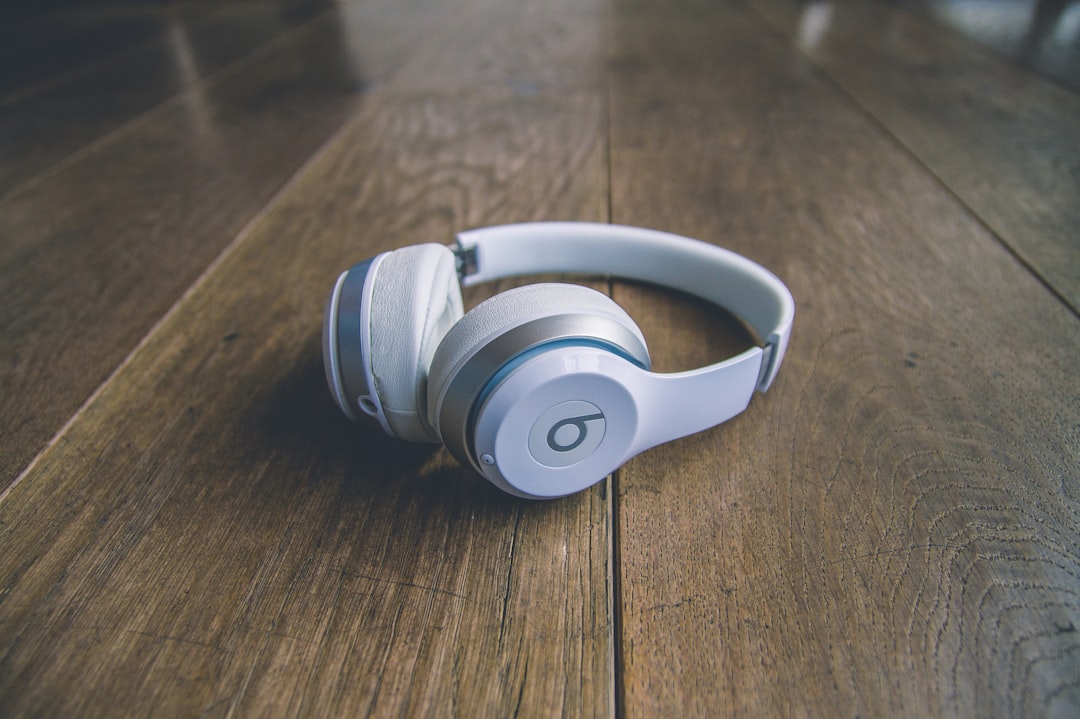
Wireless Beats headphones are among the most popular headphones available today, thanks to their sleek design, premium sound quality, and ease of use. Whether you own the Beats Solo, Powerbeats, or Beats Studio models, one of the crucial first steps is learning how to connect your Beats headphones wirelessly to various devices. This guide offers a reliable and easy-to-follow walkthrough to ensure you’re connected and listening to your favorite tunes in no time.
TLDR (Too Long; Didn’t Read):
To connect your wireless Beats headphones, power them on and put them in pairing mode. Then, access the Bluetooth settings on your smartphone, tablet, or computer and select your Beats from the list of available devices. The process varies slightly between iOS, Android, and Windows, but remains straightforward. Always ensure your headphones are charged and nearby when pairing.
Understanding Your Wireless Beats Headphones
Before diving into how to connect your wireless Beats headphones, it’s important to understand the different types of models available. Whether you’re using Beats Solo Pro, Beats Studio Buds, Powerbeats Pro, or Beats Fit Pro, the connection process is quite similar, with only small variations based on the model or your device’s operating system.
Here are the steps to follow regardless of which wireless Beats headphones you have:
Step 1: Power On Your Beats Headphones
All wireless Beats headphones must be turned on before they can be connected.
- Locate the power button on your headphones. On most models, it’s located on the left earcup or on the cable (Powerbeats).
- Hold the button until the LED indicator turns on or flashes. This indicates that your headphones have power.
If this is the first time you’re using the headphones, they should automatically enter pairing mode. If not, follow the next step.
Step 2: Enter Pairing Mode
Pairing mode allows your wireless Beats headphones to be discoverable by other devices via Bluetooth. To activate it:
- Hold the power button for roughly 5 seconds until the LED indicator starts to flash. Generally, flashing white suggests it’s searching for a connection.
- On certain models like the Beats Studio Buds, holding both earbuds down for a few seconds can also activate pairing mode.
Once the LED is flashing, proceed to your device’s Bluetooth settings.
Step 3: Connect to an iPhone or iPad
If you’re using an Apple device such as an iPhone or iPad, the process is seamless thanks to Apple’s proprietary W1 or H1 chips built into many Beats headphones.
- With your Beats in pairing mode, bring them close to your iPhone or iPad.
- A pop-up window should appear on the device screen prompting you to connect.
- Tap “Connect”.
- Once connected, the message will confirm and include battery life estimates for your headphones.
If the pop-up does not appear, go to Settings > Bluetooth, then select your Beats headphones from the list of available devices.
Step 4: Connect to an Android Device
While Android doesn’t offer the same native pairing window as iOS, connecting is still quick and easy:
- Open your device’s Settings and navigate to Bluetooth.
- Ensure Bluetooth is enabled by toggling it on.
- Select “Pair new device”.
- From the list, choose your Beats headphones (e.g., “Beats Solo3”).
- Once tapped, your headphones will connect, and a confirmation message will appear.
If using a newer Android device, your Beats may support Fast Pair, which will prompt an easy connect message on screen.
Step 5: Connect to a Windows PC or Laptop
Pairing your Beats to a Windows device involves an extra click or two, but it’s still quite simple:
- Click the Start Menu and choose Settings.
- Navigate to Devices > Bluetooth & other devices.
- Turn on Bluetooth if it isn’t already.
- Click “Add Bluetooth or other device” and choose Bluetooth from the menu.
- Select your Beats from the list and click Connect.
Wait a few seconds, and you should be good to go.
Troubleshooting Common Issues
If your Beats headphones don’t appear in your device’s Bluetooth menu, try the following:
- Reset your Beats: Hold the power button and volume down button for about 10 seconds until the LED flashes.
- Charge your headphones: Low battery can disable Bluetooth features. Plug in and let them charge for at least 10 minutes.
- Update device software: Some compatibility issues can arise from out-of-date device firmware.
- Remove old Bluetooth connections: If your Beats are connecting to another previously paired device, try disconnecting or turning off Bluetooth on that device.
Tips for Maintaining a Strong Connection
Once your Beats headphones are successfully connected, follow these best practices to maintain a strong Bluetooth connection:
- Stay within range: Most Bluetooth devices have a recommended range of 30 feet (10 meters). Avoid physical obstructions like walls.
- Keep them updated: Use the Beats app (for Android) or the Apple firmware updater to ensure your headphones have the latest software.
- Avoid wireless interference: Microwaves, smart TVs, and routers can all cause disconnection issues.
- Store them properly: Turning your Beats off when not in use helps preserve battery and Bluetooth integrity.
How to Disconnect or Unpair Beats Headphones
If you want to disconnect your Beats headphones from one device to connect to another:
- Go to your current device’s Bluetooth menu.
- Select your Beats headphones and tap “Disconnect” or “Forget”.
- Put your Beats in pairing mode again and pair with your new device following the earlier steps.
This process is especially useful when switching from a phone to a laptop or tablet.
Frequently Asked Questions
Q: Can I connect my Beats headphones to multiple devices at once?
A: While Beats can be paired with multiple devices, they typically only connect to one device at a time. You’ll need to disconnect from one device to use another.
Q: Why won’t my Beats headphones go into pairing mode?
A: Make sure your headphones are charged and powered off before attempting to enter pairing mode by holding the power button until the LED flashes.
Q: Do Beats work with non-Apple devices?
A: Yes, all modern Beats headphones support Bluetooth and can connect to Android, Windows, and other Bluetooth-enabled devices.
Conclusion
Connecting your wireless Beats headphones is a straightforward process, whether you’re using an iPhone, Android, PC, or Mac. By following the steps outlined above, you can ensure smooth, high-quality audio playback and minimal disruptions. Always remember to keep your headphones charged and updated for the best connectivity experience.
As with any tech device, occasional issues may arise, but simple troubleshooting and the right setup procedures will keep your Beats ready whenever you’re in the mood to listen.
