 logo
logo


Not being able to access your saved passwords can quickly turn from a minor inconvenience into a serious disruption. If you are seeing a “Can’t reach Google Password Manager” error, it may prevent you from signing in to essential websites, managing credentials, or syncing passwords across devices. Fortunately, in most cases, this issue is fixable with a few targeted troubleshooting steps.
TLDR: The “Can’t reach Google Password Manager” error is typically caused by internet connectivity problems, browser issues, Google account sync errors, or security software interference. Start by checking your connection and Google account status, then clear your browser cache and update Chrome. If the issue persists, disable conflicting extensions or reset browser settings. In most cases, these steps restore access quickly and securely.
Understanding the “Can’t Reach Google Password Manager” Error
Google Password Manager is deeply integrated into Google Chrome and Android devices, allowing you to save, manage, and autofill passwords securely. When you receive an error stating that it cannot be reached, it generally means your device or browser cannot connect to Google’s servers.
This may be caused by:
- Unstable or blocked internet connection
- Outdated browser or app version
- Google account sync errors
- Corrupted cache or cookies
- Conflicting browser extensions
- Firewall or antivirus restrictions
Understanding the root cause is crucial before applying a solution.
1. Check Your Internet Connection First
Because Google Password Manager relies on cloud synchronization, even slight connectivity issues can block access.
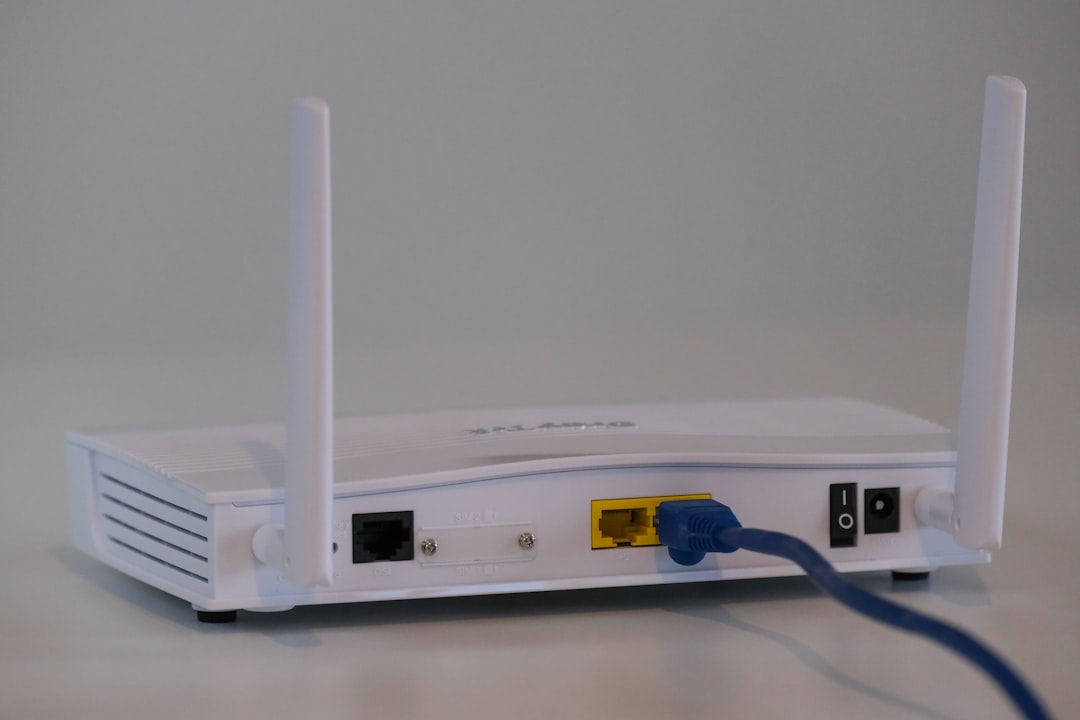
Steps to verify your connection:
- Open another website to see if it loads properly.
- Restart your router and modem.
- Switch between Wi-Fi and mobile data (if available).
- Disable VPN temporarily to rule out server conflicts.
If websites load slowly or intermittently, resolve network instability before continuing.
2. Confirm Google Account Status
A sync failure or account authentication issue may block access to saved passwords.
To verify your account:
- Open Chrome.
- Click your profile icon in the upper-right corner.
- Ensure you are signed in.
- Go to Settings → You and Google → Sync and Google Services.
- Confirm sync is turned on.
If sync is paused, turn it back on and re-enter your password if prompted.
You can also visit passwords.google.com directly. If the site loads, the issue may be browser-specific rather than account-related.
3. Update Google Chrome
An outdated browser is one of the most common causes of connectivity errors with Google services.
To update Chrome:
- Click the three-dot menu in the top-right corner.
- Go to Help → About Google Chrome.
- Allow Chrome to check for updates automatically.
- Restart the browser after updating.
Running the latest version ensures compatibility with Google Password Manager servers.
4. Clear Cache and Cookies
Corrupted cache or cookies can prevent proper communication between your browser and Google’s servers.
How to clear Chrome cache:
- Open Chrome settings.
- Navigate to Privacy and Security.
- Click Clear browsing data.
- Select Cookies and other site data and Cached images and files.
- Choose “All time” as the time range.
- Click Clear data.
After clearing, close and reopen Chrome before testing again.
5. Disable Browser Extensions
Some privacy extensions, ad blockers, or security plugins may interfere with Google’s password services.
To check extensions:
- Type chrome://extensions in the address bar.
- Disable extensions one by one.
- Refresh the Password Manager page after each change.
If the problem resolves after disabling a specific extension, remove or reconfigure it.
6. Check Firewall and Antivirus Settings
Firewall or antivirus software may block certain Google domains required for password syncing.
Recommended actions:
- Temporarily disable antivirus protection to test access.
- Add Chrome and Google domains to firewall exceptions.
- Ensure no network filtering rules block Google services.
If disabling security software fixes the issue, adjust its configuration rather than leaving protection off.
7. Reset Chrome Settings
If troubleshooting steps fail, resetting Chrome may resolve deeper configuration corruption.
To reset Chrome:
- Open Chrome Settings.
- Select Reset settings.
- Click Restore settings to their original defaults.
- Confirm by clicking Reset settings.
This will disable extensions and reset startup configurations without deleting bookmarks or saved passwords.
8. Try Incognito Mode
Incognito mode runs without extensions by default. If Google Password Manager works there, the root cause is almost certainly an extension conflict.
Open Incognito mode by pressing:
- Windows: Ctrl + Shift + N
- Mac: Command + Shift + N
If access works in this mode, return to normal mode and troubleshoot extensions.
9. Check Google Service Status
Although rare, Google services occasionally experience outages.

Visit Google Workspace Status Dashboard to verify whether there is a known disruption. If there is a live outage, you may need to wait until it is resolved.
10. Use an Alternative Access Method
If Chrome continues to display the error, try accessing your passwords using:
- Another browser (Edge, Firefox)
- Another device
- Google Password Manager app on Android
If access works elsewhere, your primary browser installation may require reinstallation.
Comparison of Common Fix Methods
| Solution | Difficulty | Time Required | Effectiveness |
|---|---|---|---|
| Check Internet | Easy | 5 minutes | High |
| Clear Cache and Cookies | Easy | 5–10 minutes | High |
| Update Chrome | Easy | 5 minutes | High |
| Disable Extensions | Moderate | 10–15 minutes | Very High |
| Reset Chrome | Moderate | 10 minutes | Very High |
When to Reinstall Chrome
If all other solutions fail, reinstalling Chrome may fix deeply embedded corruption.
Steps:
- Uninstall Chrome from your system.
- Restart your computer.
- Download the latest version from Google.
- Reinstall and sign back into your account.
This step should only be taken after exhausting other troubleshooting options.
Security Considerations
When troubleshooting password errors, always prioritize security:
- Never download unofficial password manager tools.
- Avoid entering passwords on unsecured public Wi-Fi.
- Enable two-factor authentication on your Google account.
- Check recent account activity for suspicious logins.
If you suspect unauthorized access, immediately change your Google password and review security settings.
Preventing Future Errors
To reduce the risk of encountering this error again:
- Keep Chrome automatically updated.
- Limit unnecessary extensions.
- Regularly review sync settings.
- Run reputable security software without over-restrictive firewall rules.
- Maintain a stable internet connection.
Consistency in maintenance significantly lowers the chances of recurring issues.
Final Thoughts
The “Can’t reach Google Password Manager” error can be alarming, particularly when you rely on saved credentials for daily access to online services. However, in most situations, the cause is technical rather than critical. By systematically checking your internet connection, browser updates, sync settings, and potential software conflicts, you can usually restore access within minutes.
If the issue persists despite following all recommended steps, consider contacting Google Support for further assistance. Acting methodically and securely will ensure that your saved passwords remain protected and accessible whenever you need them.
