 logo
logo

Technology is amazing. Until it breaks.
Then it becomes confusing. Slow. Stressful. That is where remote desktop apps save the day. They let you jump into another computer from anywhere in the world. You can fix problems, update software, or guide someone step by step. All without leaving your chair.
TLDR: Remote desktop apps let you control another computer from anywhere. They make troubleshooting faster, cheaper, and less stressful. IT teams, freelancers, and even families use them daily. The right tool can save hours of frustration with just a few clicks.
Let’s explore how these tools work. And which ones make support much easier.
What Is a Remote Desktop App?
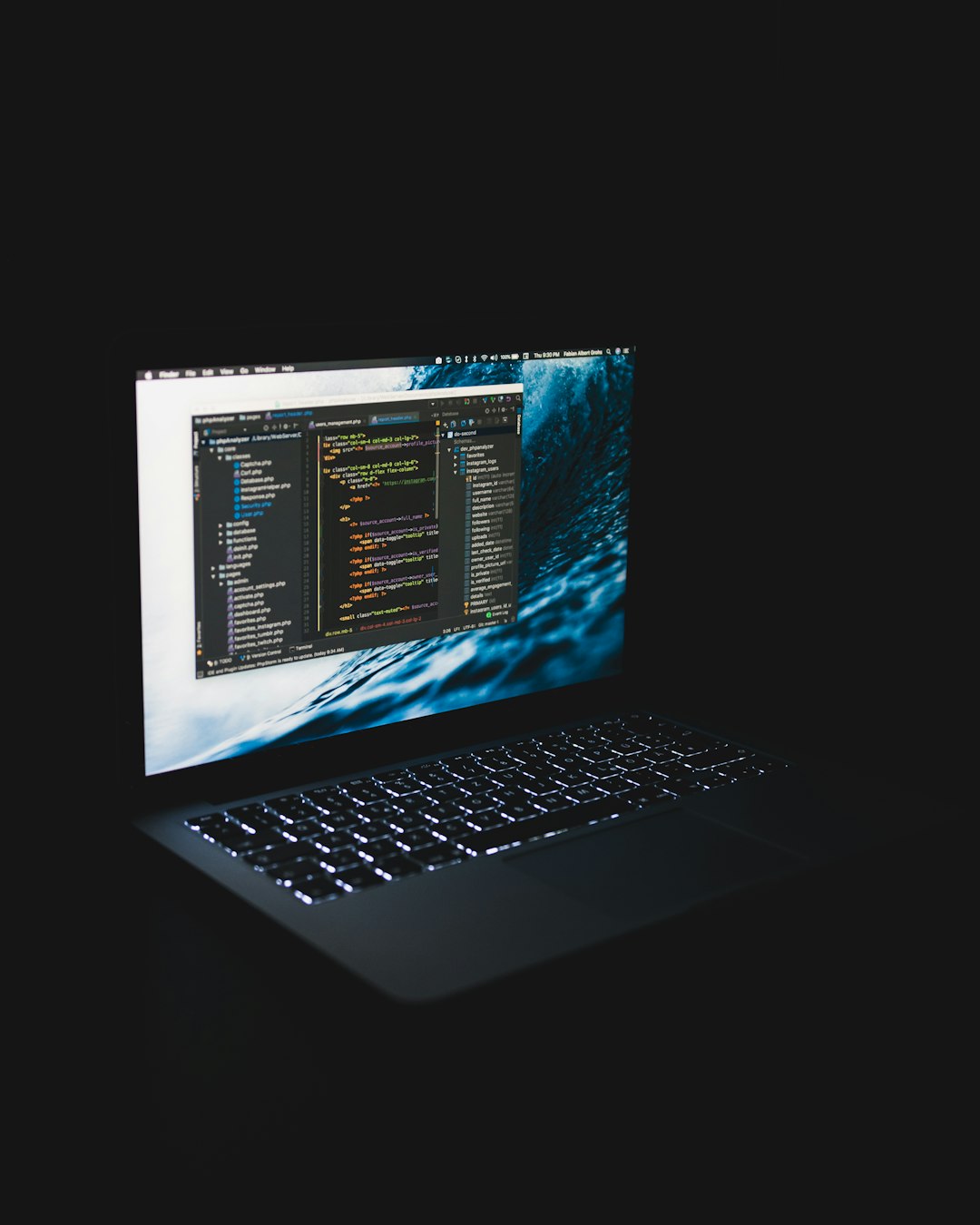
A remote desktop app lets you see and control another computer over the internet.
Think of it like magic. But it is really just smart software.
- You see the other screen in real time.
- You move the mouse.
- You type on the keyboard.
- You open files and settings.
The person on the other side does not need to explain what is wrong. You can see it yourself. That alone saves tons of time.
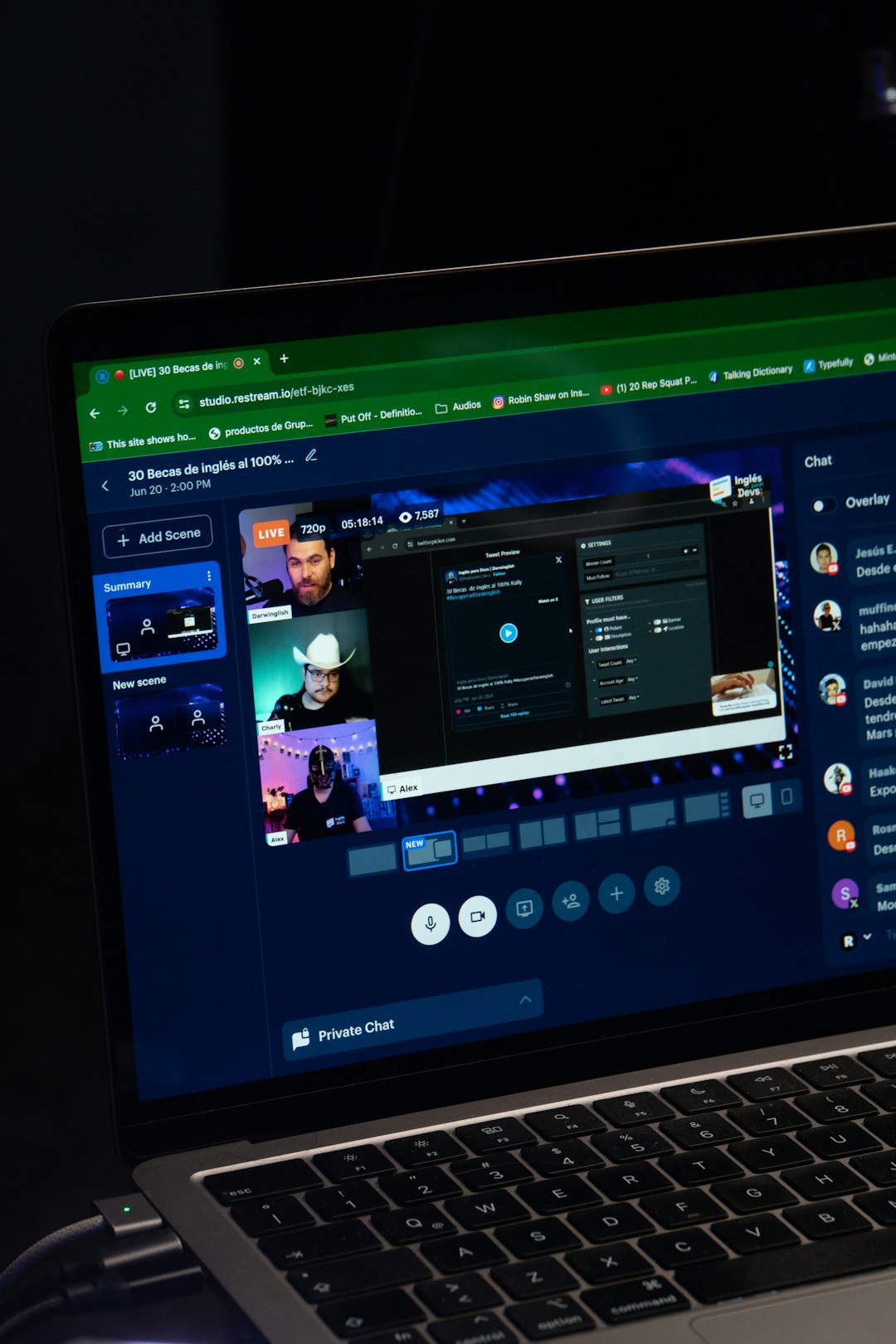
Why Remote Desktop Apps Make Troubleshooting Easier
Let’s keep it simple.
1. No More Guessing
Ever tried fixing something over the phone?
“Click the blue button.”
“I don’t see a blue button.”
Sound familiar?
Remote access removes the guesswork. You see exactly what they see.
2. Faster Fixes
No driving across town. No waiting for someone to bring in a laptop.
You connect. You fix it. Done.
3. Lower Costs
Less travel. Less downtime. Fewer on-site visits.
Businesses love that part.
4. Better Support Experience
Users feel calm when they know an expert can jump in instantly.
It builds trust.
Top Remote Desktop Apps That Stand Out
There are many tools out there. Some are simple. Some are powerful. Let’s break down the most popular ones.
1. TeamViewer
This one is a classic.
TeamViewer is known for being easy to use. You install it. Share an ID. Connect.
Why people love it:
- Works on Windows, Mac, Linux, and mobile
- Strong security
- File transfer included
- No complex setup
It is great for IT teams. It is also great for helping your parents fix their email.
2. AnyDesk
Small. Fast. Lightweight.
AnyDesk is known for speed. It runs smoothly even on slower internet connections.
Top features:
- Fast performance
- Low latency
- Easy interface
- Unattended access
If you support many devices daily, speed matters. AnyDesk delivers.
3. Chrome Remote Desktop
Simple and free.
If you use Google Chrome, this tool is very easy to set up.
Best for:
- Quick access
- Personal use
- Small support tasks
It may not have advanced business features. But it gets the job done.
4. Microsoft Remote Desktop
Built into Windows.
If you work in a Windows environment, this is powerful.
Great for:
- Office networks
- Internal IT teams
- Secure company setups
It works best within business ecosystems.
5. Splashtop
Affordable and strong.
Splashtop is popular with businesses and managed service providers.
Standout features:
- High performance streaming
- Remote printing
- Multi monitor support
- Strong security controls
It balances price and power nicely.
Quick Comparison Chart
| Tool | Best For | Ease of Use | Speed | Business Features |
|---|---|---|---|---|
| TeamViewer | General support | Very Easy | Fast | Strong |
| AnyDesk | Fast connections | Easy | Very Fast | Strong |
| Chrome Remote Desktop | Personal use | Very Easy | Moderate | Basic |
| Microsoft Remote Desktop | Windows networks | Moderate | Fast | Strong in Windows |
| Splashtop | Business support | Easy | Very Fast | Very Strong |
Key Features That Matter Most
Not all remote desktop apps are equal.
Here is what really makes troubleshooting smooth.
Screen Sharing Quality
Blurry screens slow everything down.
High resolution screen sharing helps you spot issues quickly.
File Transfer
Need to install a patch?
Send a document?
Built-in file transfer saves time.
Unattended Access
This lets you access a device even if no one is there.
Perfect for servers and office computers after hours.
Security
This one is huge.
Look for:
- End to end encryption
- Two factor authentication
- Session logging
- Permission controls
Troubleshooting should not create new problems.
How Different People Use Remote Desktop Apps
These tools are not just for IT pros.
IT Support Teams
They handle dozens of tickets daily.
Remote access lets them jump between machines fast.
No wasted motion.
Freelancers
Designers. Developers. Consultants.
They log into client systems from anywhere in the world.
Airport lounge? No problem.
Small Business Owners
Need to check office files from home?
Easy.
Families
Helping grandparents install updates.
Fixing a printer.
Resetting a password.
Remote support keeps everyone sane.

Tips for Smooth Remote Troubleshooting
Want to look like a support hero?
- Always explain what you are doing.
- Ask permission before taking control.
- Close private files when finished.
- Test the connection before starting big updates.
- Keep software updated.
Communication matters as much as technical skill.
Common Problems Remote Desktop Apps Help Solve
Here are real world issues these tools fix daily:
- Software crashes
- Printer problems
- Email setup issues
- Virus removal
- Slow performance troubleshooting
- Network configuration
Instead of saying, “Bring it in tomorrow,” you say, “Give me five minutes.”
Are Remote Desktop Apps Safe?
Short answer: Yes. If used correctly.
Good tools use strong encryption. That means outsiders cannot see your session.
But safety also depends on users.
- Use strong passwords.
- Enable two factor authentication.
- Do not share access codes publicly.
- Remove access when it is no longer needed.
Treat remote access like a house key. Only trusted people get it.
The Future of Remote Support
Remote work is growing.
Global teams are now normal.
Physical offices matter less.
Remote desktop technology will only get smarter.
We are already seeing:
- Cloud based management dashboards
- AI driven diagnostics
- Faster streaming with lower bandwidth
- Cross platform support everywhere
In the future, troubleshooting may feel instant.
Final Thoughts
Tech problems are frustrating. But fixing them does not have to be.
Remote desktop apps remove distance. They remove confusion. They remove delay.
Whether you are running an IT department or helping your uncle reset his laptop, the right tool makes all the difference.
Choose one that fits your needs. Focus on security. Keep it simple.
Then sit back and fix problems like a pro. Without ever leaving your desk.
