 logo
logo


Sideloadly has become one of the most popular tools for sideloading iOS apps without jailbreak, but like any software working within Apple’s tight ecosystem, it can run into technical hiccups. One of the most frustrating errors users encounter is the “Failed To Re-Fetch Bundle During Preflight Installation” message. This error often pops up unexpectedly and halts the installation process entirely, leaving users confused and stuck.
TL;DR: The “Failed To Re-Fetch Bundle During Preflight Installation” error in Sideloadly is usually caused by network instability, outdated software, expired certificates, corrupted IPA files, or Apple ID authentication issues. Fixing it typically involves checking your internet connection, updating Sideloadly and iTunes, re-downloading the IPA file, or refreshing your Apple ID session. System configuration issues such as antivirus interference or firewall blocks can also trigger the error. Follow the six proven fixes below to resolve the issue quickly and get back to sideloading.
Understanding the Error
Before jumping into solutions, it helps to understand what this error actually means. During the preflight installation stage, Sideloadly verifies the IPA file, communicates with Apple’s servers, signs the app with your Apple ID, and prepares it for installation. When it “fails to re-fetch bundle,” it typically indicates that the tool cannot properly retrieve or validate necessary app data during this verification phase.
This usually happens due to:
- Network interruptions
- Expired or invalid certificates
- Corrupted IPA files
- Apple ID authentication problems
- Outdated dependencies such as iTunes or iCloud
- Firewall or antivirus interference
Let’s explore the top six proven fixes to resolve the issue.
1. Check Your Internet Connection
This may sound basic, but unstable or restricted internet access is one of the most common causes of preflight installation errors.
Sideloadly needs to communicate with Apple’s servers to authenticate your Apple ID and generate signing certificates. If your connection drops — even briefly — during this stage, the process may fail.
What to do:
- Switch from Wi-Fi to a wired Ethernet connection if possible.
- Restart your router.
- Disable VPN services temporarily.
- Try using a different network.
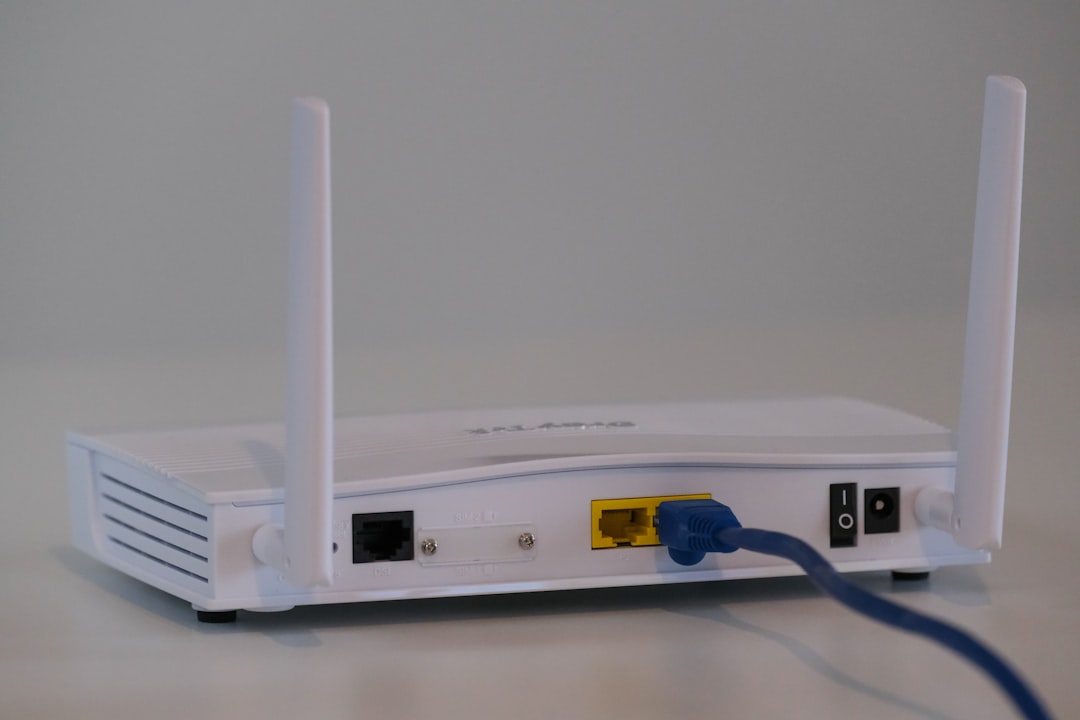
If you’re on a corporate or school network, firewall restrictions might block Apple’s signing servers. In that case, switching to a personal network usually resolves the issue immediately.
2. Update Sideloadly, iTunes, and iCloud
Outdated software components often lead to compatibility problems. Apple frequently updates its signing protocols, and if you’re running an older version of Sideloadly or iTunes, the authentication process may break.
Make sure the following are updated:
- Sideloadly (download the latest version from the official source)
- iTunes (non-Microsoft Store version is recommended)
- iCloud for Windows (if applicable)
Important tip: On Windows, avoid the Microsoft Store version of iTunes. It lacks certain components that Sideloadly depends on. Instead, install the standalone version directly from Apple’s website.
After updating, restart your computer before attempting installation again. This ensures all background services reload correctly.
3. Re-Download or Replace the IPA File
Sometimes the error has nothing to do with your system and everything to do with the IPA file itself.
IPA files can become corrupted during download, especially if:
- The download was interrupted
- The file was transferred incorrectly
- The source was unreliable
A corrupted IPA prevents Sideloadly from verifying the app bundle metadata, triggering the “Failed To Re-Fetch Bundle” error.
Fix steps:
- Delete the existing IPA file.
- Re-download it from a trusted source.
- Avoid using download managers or browser extensions.
- Ensure the file extension remains .ipa.

If the problem persists even with a fresh download, try testing another IPA entirely. This helps confirm whether the original file was the root issue.
4. Re-Login to Your Apple ID in Sideloadly
Sideloadly requires your Apple ID credentials to sign apps. If your authentication session expires or Apple changes security tokens, you may encounter signing-related errors during preflight.
To fix this:
- Close Sideloadly completely.
- Reopen the application.
- Re-enter your Apple ID credentials.
- If you use two-factor authentication, generate a new app-specific password.
How to create an app-specific password:
- Sign in to your Apple ID account page.
- Go to “Security.”
- Select “Generate App-Specific Password.”
- Use that password inside Sideloadly.
This often resolves signing handshake failures that interrupt the preflight process.
5. Remove Old Certificates and Refresh App IDs
Apple limits the number of active app signing certificates tied to a free Apple ID. If you’ve installed multiple apps or repeatedly used Sideloadly, certificate conflicts may occur.
Expired or overused certificates can block new installations.
Here’s how to fix it:
- Uninstall previously sideloaded apps from your device.
- Restart your iPhone or iPad.
- Open Sideloadly and enable the “Remove App IDs” option (if available).
- Try installing again.
If you’re using a free Apple ID, remember that apps expire every 7 days. Keeping too many expired entries can cause verification conflicts during installation.
6. Disable Firewall or Antivirus Temporarily
Security software can mistake Sideloadly’s communication with Apple servers as suspicious activity. When firewall rules block essential ports or HTTPS calls, the preflight verification fails.
Steps to troubleshoot:
- Temporarily disable antivirus protection.
- Turn off Windows Defender Firewall (briefly).
- Add Sideloadly to your antivirus exclusion list.
- Ensure ports 80 and 443 are not blocked.
After disabling protection, try running Sideloadly again. If the installation succeeds, you’ve identified the culprit. Re-enable your security software and configure proper exceptions instead of leaving it off permanently.
Bonus Tips for Preventing the Error
While the six fixes above solve the problem in most cases, prevention is always better than troubleshooting.
Best practices include:
- Keeping Sideloadly updated regularly
- Avoiding unofficial IPA sources
- Maintaining a stable internet connection during installation
- Regularly cleaning expired apps from your device
- Restarting your computer before major installs
Also, avoid running multiple iOS management tools simultaneously. Programs like AltStore, 3uTools, or iMazing operating alongside Sideloadly may create port conflicts or certificate overlaps.
When All Else Fails
If none of the above fixes work, try these advanced steps:
- Reinstall Sideloadly entirely.
- Reinstall iTunes and iCloud.
- Test installation on a different computer.
- Try a different Apple ID.
Sometimes the issue stems from system-level corruption or hidden registry conflicts, especially on older Windows machines. A clean reinstallation environment often resolves stubborn preflight failures.
Final Thoughts
The “Sideloadly Failed To Re-Fetch Bundle During Preflight Installation” error may seem intimidating at first, but in most cases, it’s caused by relatively simple issues: unstable internet, outdated software, expired certificates, or authentication problems.
By methodically working through the six fixes outlined above — checking your connection, updating dependencies, verifying the IPA file, refreshing your Apple ID credentials, clearing certificates, and managing firewall settings — you can typically resolve the issue within minutes.
Sideloading remains one of the most powerful tools for expanding what your iOS device can do. With the right troubleshooting approach, technical errors like this become minor speed bumps rather than roadblocks.
Stay updated, stay organized, and happy sideloading!
