 logo
logo



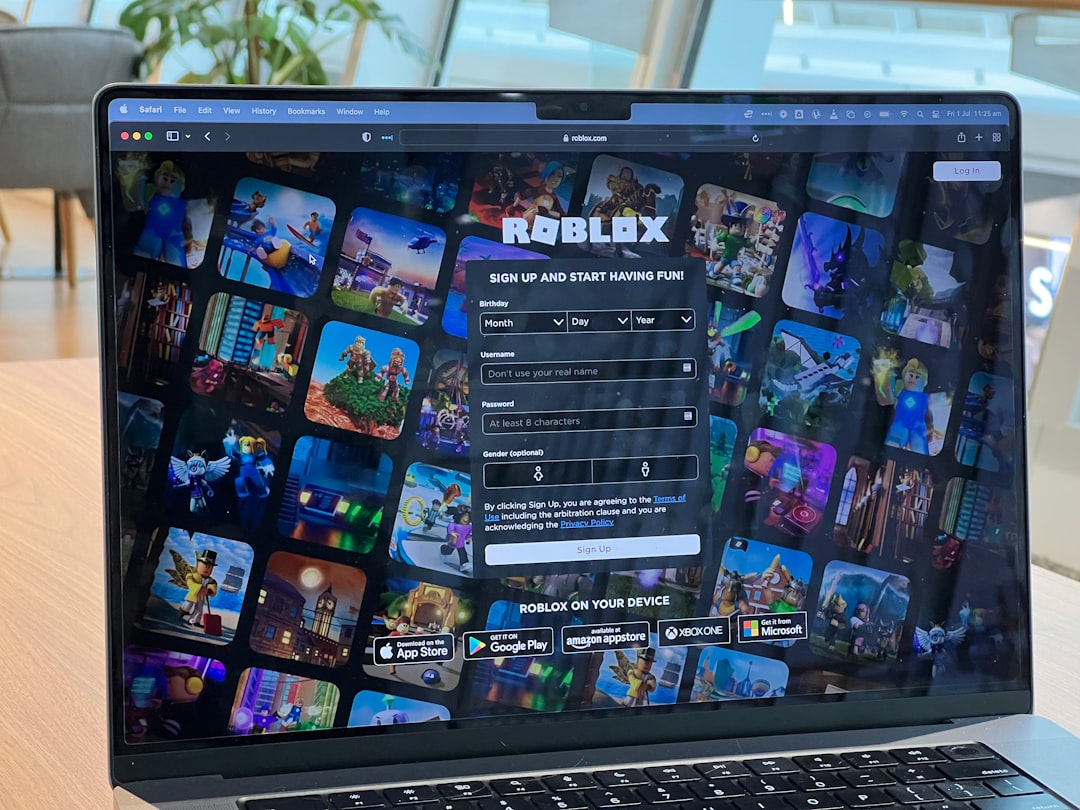
Running more than one Roblox account on the same PC sounds tricky. Many players think it will crash their game. Or even worse, their whole computer. The good news? It’s totally possible. And you don’t need to be a tech wizard to do it. You just need the right tools and a few smart tricks.
TLDR: Yes, you can run multiple Roblox accounts on one PC without crashes. Use tools like browser profiles, sandbox software, Microsoft Store Roblox, and virtual machines to separate each account safely. Make sure your PC has enough RAM and close background apps. Follow the right setup, and you’ll be playing with multiple accounts smoothly.
Let’s break down the top 6 ways to do it safely and smoothly.
1. Use Multiple Browser Profiles
This is the easiest method. And it’s beginner-friendly.
Most modern browsers like Chrome, Edge, and Firefox let you create separate user profiles. Each profile works like its own mini browser. That means separate logins, cookies, and sessions.
How it works:
- Create 2 or more browser profiles.
- Log into a different Roblox account in each one.
- Launch Roblox from each profile.
Since Roblox treats each browser profile as a separate session, you can run multiple accounts at once.
Why it’s great:
- Super simple setup
- No extra software needed
- Low risk of crashes
Pro tip: Make sure hardware acceleration is turned on in your browser settings for better performance.
2. Combine Roblox Web Version and Microsoft Store Version
Here’s a clever trick many players don’t know.
Roblox has two Windows versions:
- The web-based launcher version
- The Microsoft Store app version
The cool part? They run as separate apps.
How to do it:
- Install Roblox from the Microsoft Store.
- Install Roblox normally through the website.
- Log into a different account on each version.
- Launch both.
They don’t interfere with each other. So crashes are rare.
This method is perfect if you only need two accounts running.
Bonus: It doesn’t require extra RAM like heavier methods do.
3. Use Sandbox Software
If you want more than two accounts, sandboxing is powerful.
A sandbox creates a separate, isolated environment on your PC. Programs running inside it believe they are alone on the system.
Popular sandbox tools:
- Sandboxie Plus
- SHADE Sandbox
How it works:
- Install sandbox software.
- Run Roblox inside the sandbox.
- Run another Roblox normally outside it.
- Repeat using extra sandboxes if supported.
This prevents conflicts between sessions.
Why it helps prevent crashes:
- Each instance has isolated memory space.
- Files and processes don’t clash.
- Less system confusion.
Warning: Sandbox tools use more RAM. Make sure you have at least 16GB if running 3+ accounts.
4. Use a Virtual Machine
This one is more advanced. But very powerful.
A virtual machine (VM) creates an entirely separate operating system inside your PC. It’s like running another computer inside your computer.
Common VM software:
- VirtualBox
- VMware Workstation
- Hyper V
Steps:
- Install VM software.
- Create a new Windows virtual machine.
- Install Roblox inside the VM.
- Run your main Roblox outside the VM.
This gives full separation. Almost zero conflict.
But remember:
- VMs require strong CPU power.
- You need lots of RAM (16GB minimum, 32GB ideal).
- Graphics performance may be reduced.
This method is best for advanced users or developers testing games.
5. Use Roblox Account Manager Tools
This method is growing in popularity.
Some third-party tools are designed specifically to manage multiple Roblox accounts.
They allow:
- One-click account switching
- Multi-instance launching
- Easier session management
These tools automate what you would otherwise do manually.
Important: Always download from trusted sources. Avoid shady websites.
Before using any manager tool:
- Check community reviews.
- Scan files with antivirus.
- Read Roblox’s terms to stay compliant.
When used properly, account managers reduce crash risk by controlling launch timing and memory allocation.
6. Upgrade and Optimize Your PC
Sometimes crashes have nothing to do with Roblox.
Your PC may simply be stressed.
Running multiple game clients at once is heavy work.
Minimum recommended specs for 3+ accounts:
- 16GB RAM
- SSD storage
- Modern 4+ core CPU
- Dedicated GPU
Optimization tips:
- Close background apps.
- Disable startup programs.
- Lower Roblox graphics settings.
- Update drivers.
- Keep Windows updated.
Also, set Roblox priority to “High” in Task Manager. This helps prevent freezing.
Comparison Chart: Best Methods to Run Multiple Roblox Accounts
| Method | Difficulty | Max Accounts | Crash Risk | Best For |
|---|---|---|---|---|
| Browser Profiles | Easy | 2-3 | Low | Beginners |
| Web + Microsoft Store | Very Easy | 2 | Very Low | Casual Players |
| Sandbox Software | Medium | 3-5 | Low | Multi Account Farmers |
| Virtual Machine | Hard | 4+ | Very Low | Advanced Users |
| Account Manager Tools | Medium | 3-6 | Medium | Power Users |
| PC Optimization | Easy | Improves All | Lowers All | Everyone |
Extra Tips to Avoid Crashes
Even with the best method, mistakes can cause problems.
Follow these golden rules:
- Launch accounts one at a time. Wait 20–30 seconds between each.
- Lower graphics settings on alt accounts.
- Do not run heavy software like video editors at the same time.
- Monitor RAM usage in Task Manager.
- Keep your system cool. Overheating causes crashes.
Quick RAM guide:
- 8GB RAM = 1–2 accounts max
- 16GB RAM = 3–4 accounts smooth
- 32GB RAM = 5+ accounts comfortable
What Causes Roblox To Crash With Multiple Accounts?
Understanding the problem helps you avoid it.
Common causes include:
- Memory overload
- Session conflicts
- Corrupted cache files
- Outdated GPU drivers
- Launching too many instances at once
Most crashes are hardware-related. Not Roblox-related.
That’s good news. Because hardware problems are fixable.
Final Thoughts
Running multiple Roblox accounts on one PC is not only possible. It’s practical.
If you’re just starting, try the Microsoft Store + Web version combo. It’s the safest and easiest.
If you need more power, move to Sandbox software.
If you’re advanced and want full control, go with a Virtual Machine.
And remember. Your PC is the real hero here. Treat it well. Give it enough RAM. Keep it cool. Keep it updated.
Do that, and you can run multiple Roblox accounts smoothly. No crashes. No stress. Just fun.
