 logo
logo



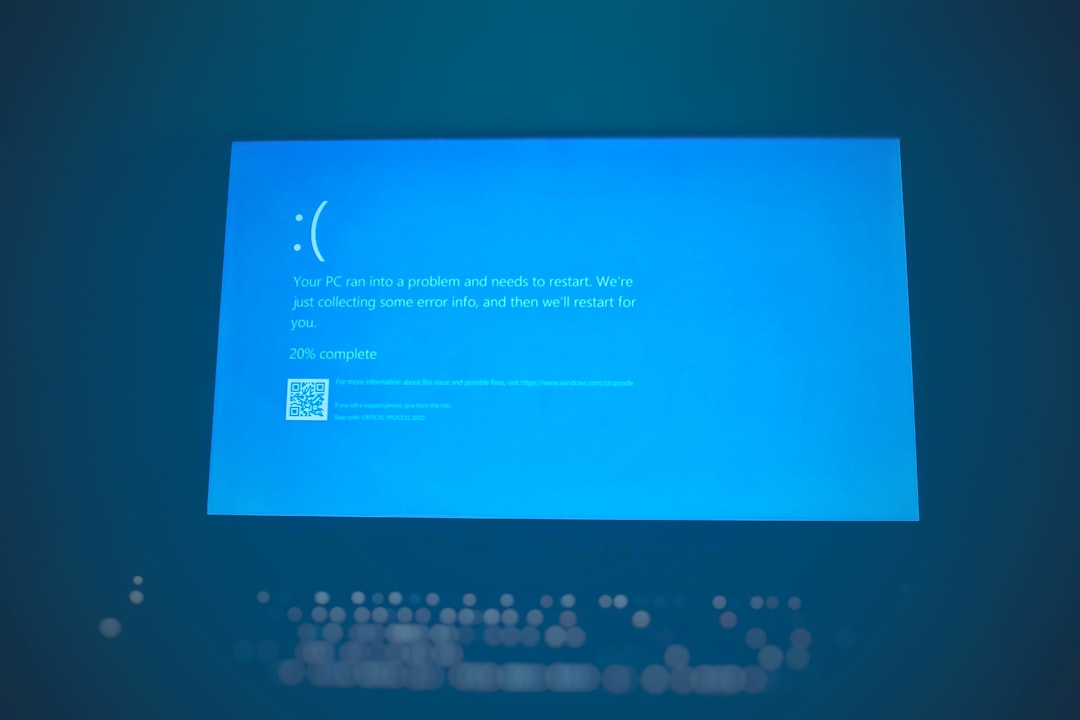
Have you ever tried to delete a file on your Windows computer, only to be met with a mysterious error message that denies you permission? Or has the file simply refused to disappear, no matter how many times you hit the delete key? You’re not alone. Many Windows users encounter situations where certain files cannot be deleted, and the reasons behind these issues can vary widely—from permissions problems to system-level restrictions.
TL;DR (Too Long; Didn’t Read)
Some files in Windows are protected by the system, actively in use, or lack the required permissions for deletion. This is a common problem and can often be fixed by terminating running processes, changing user permissions, or using tools such as Safe Mode or third-party unlockers. Understanding why a file is undeletable makes it easier to take the right approach to remove it safely without harming your system. Read on to discover what’s going wrong and how to fix it.
Common Reasons Why Files Can’t Be Deleted
There are several root causes why Windows may prevent you from deleting a file. Each of these reasons has its own typical fixes.
- File is In Use: The file might be open in another program or process.
- Permission Issues: You may not have the required administrative privileges to delete it.
- Corrupted File: A file that’s damaged might interfere with file operations like moving, editing, or deleting.
- File Name Is Too Long: Windows has character limits for paths, and files exceeding this limit can become unmanageable.
- Malware or System Protection: Some malicious files, or legitimate ones protected by Windows, resist deletion attempts.
- Read-Only File System: If a disk is mounted as read-only, deletion isn’t possible until permissions are altered.
1. File Is In Use
One of the most common reasons is that the file is being used by another program or service.
How to Fix:
- Close all open applications, especially ones likely to use the file.
- Use Task Manager to end processes related to the application.
- Try deleting the file after restarting your computer in normal or Safe Mode.

2. Permission Issues
Windows files and folders come with access permissions governed by ownership and group policies. An account lacking the necessary privileges won’t be able to delete a file.
How to Fix:
- Right-click the file and select Properties.
- Go to the Security tab and click on Advanced.
- Click Change next to the Owner field, and assign ownership to your user account.
- Apply the changes and try deleting the file again.
In some editions of Windows, especially those used in corporate environments, administrator intervention might be required.
3. System Files or Protected Files
Files that are part of the Windows operating system are often locked by default. Deleting these can lead to stability issues or even prevent Windows from functioning properly.
How to Fix:
- Use Safe Mode to gain access to system areas without background services running.
- For stubborn files, use Command Prompt (Admin) and the
delcommand.
Caution: Always ensure the file is non-essential before removing anything from system directories like C:\Windows\System32.
4. File Name or Path Is Too Long
Windows has a maximum path length limit of 260 characters for a file or folder. Files buried deeply in nested folders may exceed this limit, causing errors during deletion.
How to Fix:
- Rename folders higher in the directory structure to shorten the entire path.
- Move the file to a root directory (like
C:\) before trying deletion. - Use a third-party file manager optimized for long path names.

5. Malware or Forced Locking
Malware may deliberately lock or disguise files to prevent removal. These may also modify file system permissions or inject registry keys to resist deletion.
How to Fix:
- Run a full system scan using trusted anti-malware software.
- If identified, use Safe Mode and anti-malware tools to remove the malware first.
- Use utilities like Unlocker or Process Explorer to identify what is locking the file.
6. Disk Is Write-Protected
This usually occurs with external drives or USB flash drives. If Windows detects write protection, file alterations, including deletion, are disabled.
How to Fix:
- Check for a physical switch on the drive and turn off write-protection if available.
- Open Command Prompt (Admin) and type:
diskpart→list disk→select disk #→attributes disk clear readonly
Best Tools to Delete Stubborn Files
When all else fails, several third-party tools can help force deletion. These utilities are specialized in removing files locked by the system or other apps.
- Unlocker: Allows you to see which program is locking a file and gives you the option to kill the lock and delete it.
- Process Explorer: Microsoft’s own advanced Task Manager lets you find and close file handles.
- IObit Unlocker: Simple drag-and-drop interface for unlocking and deleting files.
Preventive Measures
To avoid running into undeletable files in the future, consider these best practices:
- Regularly scan for malware.
- Back up files before making any major system changes.
- Avoid unnecessarily altering system files.
- Keep file paths and names within recommended limits.
Conclusion
Encountering undeletable files in Windows can be frustrating, but the issue usually has a logical explanation and a straightforward fix. Whether it’s a permission issue, a system lock, or interference from malware, identifying the cause is the first step toward resolution. With the right knowledge and tools, you can safely remove almost any file without compromising your data or system integrity.
FAQs
- Q: What does “File is in use” mean?
- A: It means an application or system process is currently using the file, preventing its deletion. Closing the app or restarting can usually solve this.
- Q: Can I delete system files?
- A: You can, but it’s highly discouraged unless you’re absolutely sure the file isn’t critical. Use Safe Mode and backup your system first.
- Q: Why can’t I delete files even as an administrator?
- A: Administrative accounts may still be blocked by ownership rules or system locks. Changing permissions manually often helps.
- Q: Is it safe to use third-party deletion tools?
- A: Yes, reputable ones like Unlocker or Process Explorer are specifically designed for this purpose and used by many IT professionals.
- Q: How do I know if a file is malware?
- A: If a file appears suspicious, refuses deletion, or is disguised as a system file in the wrong folder, run it through a malware scanner immediately.
