 logo
logo



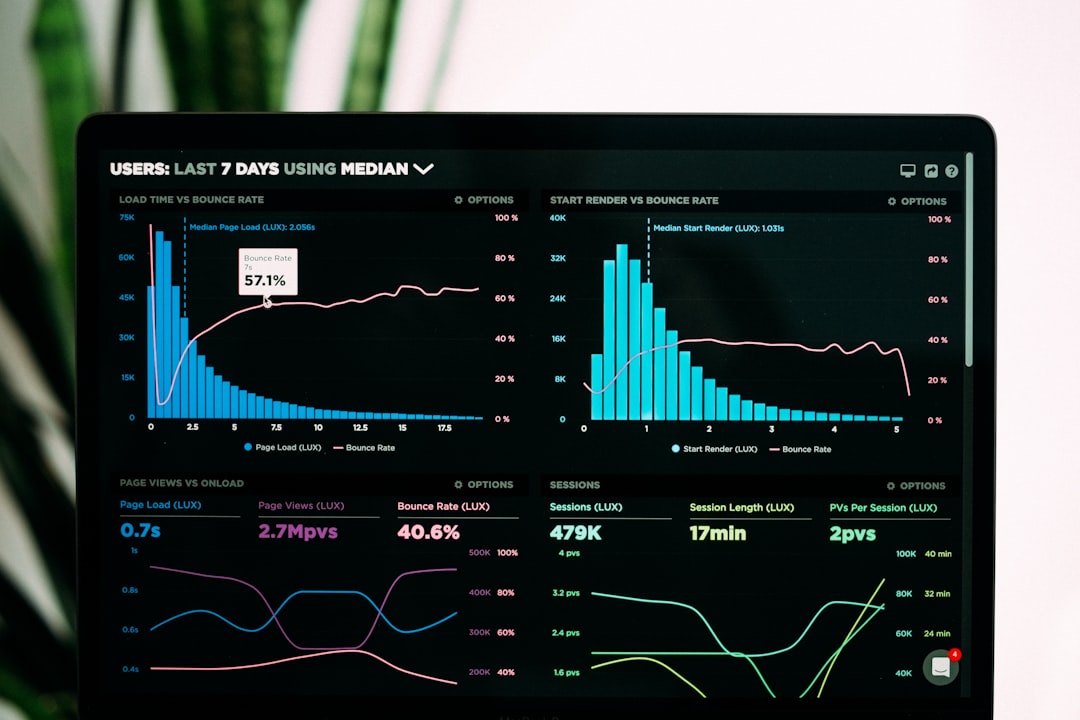
A broken WordPress site can turn a normal business day into a stressful technical emergency. Whether the homepage shows a blank screen, the admin dashboard is inaccessible, or visitors see database errors, the fastest path to recovery is a calm, step-by-step troubleshooting process.
TLDR: Most WordPress errors come from plugin conflicts, theme issues, server limits, corrupted files, or database connection problems. A practical fix usually starts with backups, error logs, plugin testing, and restoring core files if needed. For example, a small online store that loses checkout access for 3 hours could miss dozens of sales; resolving a plugin conflict may restore revenue flow within minutes. In many cases, checking the most recent update identifies the cause in 70% or more of common WordPress breakages.
Why WordPress Errors Happen
WordPress is flexible because it relies on themes, plugins, databases, PHP, and server settings working together. That flexibility also means one update, one incompatible plugin, or one low memory limit can trigger visible problems. When someone says, “fix my WordPress site,” the issue is rarely random. It usually has a traceable cause.
The most common sources include:
- Plugin conflicts after updates or installations
- Theme compatibility problems with newer WordPress versions
- PHP memory limits that are too low for the site workload
- Database connection errors caused by incorrect credentials or server downtime
- Corrupted core files from failed updates
- Malware or unauthorized changes affecting files and redirects
The White Screen of Death
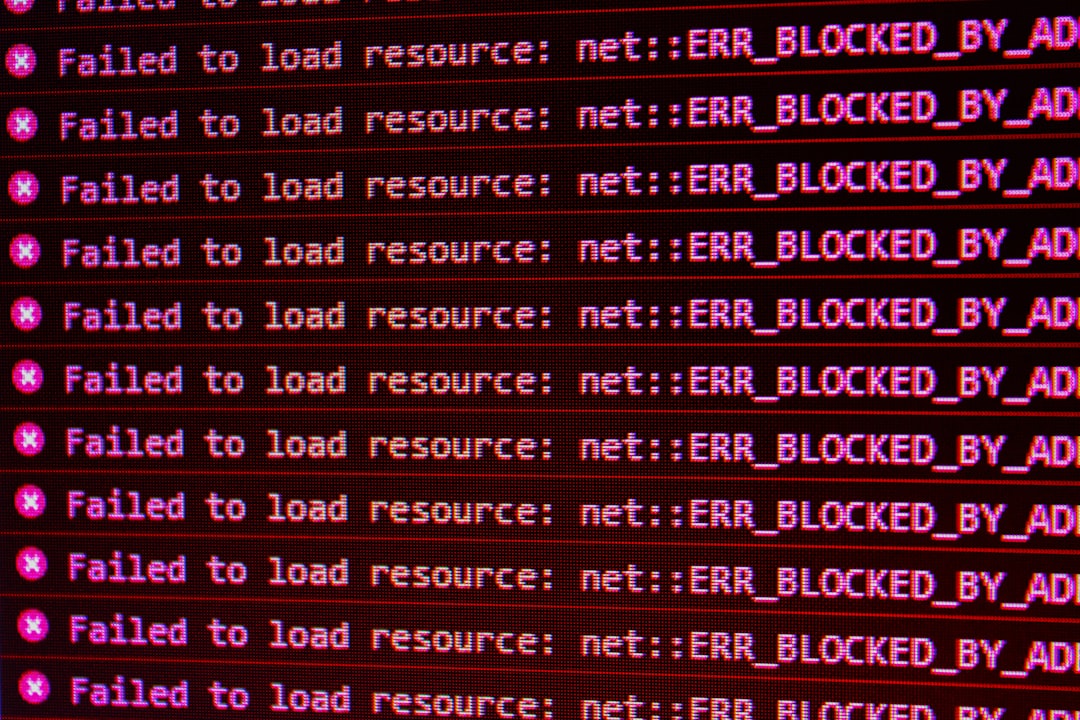
The White Screen of Death is one of the most alarming WordPress errors because it often shows no message at all. The site may load as a blank white page, while the admin dashboard may also become inaccessible.
The usual causes are PHP errors, plugin conflicts, theme failures, or exhausted memory. A technician typically begins by enabling WordPress debugging through the configuration file. This reveals error messages that point to the failing plugin, theme, or function.
If dashboard access is unavailable, the plugins folder can be renamed through file manager or FTP. This deactivates all plugins at once. If the site returns, the problem is almost certainly plugin related. The technician then restores the folder name and activates plugins one by one until the faulty one is identified.
Error Establishing a Database Connection
The message “Error establishing a database connection” means WordPress cannot communicate with its database. Since the database stores posts, pages, users, settings, and many plugin configurations, the site cannot function without it.
Common causes include incorrect database credentials, a damaged database, an overloaded server, or a hosting outage. The database name, username, password, and host are usually checked in the wp-config.php file. If those details are correct, the hosting control panel or database tool can confirm whether the database server is online.
In some cases, repairing the database solves the issue. WordPress includes a repair mode that can be enabled temporarily. However, this should only be done carefully and removed after the repair is complete, because leaving repair access open can create a security risk.
Internal Server Error
A 500 Internal Server Error usually means the server encountered a problem but cannot display a precise cause. This error is often linked to a corrupted .htaccess file, exhausted PHP memory, incompatible plugins, or server configuration changes.
A common first step is renaming the .htaccess file and then regenerating it by saving the permalink settings in WordPress. If that does not work, the current theme and plugins are tested. Increasing the PHP memory limit may also help when the error appears during admin tasks, imports, or page builder edits.
Critical Error on This Website
The message “There has been a critical error on this website” often appears after a fatal PHP error. WordPress may send an automated email to the site administrator with recovery mode access. That email can identify the exact plugin or theme causing the problem.
If the email is not received, server error logs become important. A support team or developer can inspect the logs to find the file and line number responsible. Most critical errors can be fixed by disabling the faulty extension, updating PHP, replacing corrupted files, or rolling back a recent update.
Login Problems and Locked Admin Access
Admin login issues can happen for several reasons. The password may be incorrect, cookies may be blocked, a security plugin may have locked the user out, or the login URL may have been changed. Sometimes malware injects redirects that prevent normal access.
A reliable troubleshooting process checks browser cookies, resets the password through the database or email system, disables security plugins temporarily, and verifies the site URL settings. If the dashboard redirects repeatedly, the issue may be related to incorrect values in the WordPress address or site address fields.
Broken Layout After an Update
A site may still load but look distorted after a theme, plugin, or WordPress core update. Menus may disappear, images may resize incorrectly, or page builder sections may break. This usually indicates compatibility trouble or missing cached assets.
The first step is clearing all cache layers, including browser cache, WordPress cache, CDN cache, and server cache. If the layout remains broken, the most recent update should be reviewed. A safe rollback to the previous working version may be the fastest temporary fix while the theme or plugin developer releases a patch.
Slow WordPress Site Performance
Not all WordPress problems appear as obvious errors. A slow website can be just as damaging. Research commonly shows that visitors abandon pages when loading takes too long, and even a few extra seconds can reduce conversions significantly.
Speed issues often come from oversized images, excessive plugins, poor hosting, unoptimized databases, render blocking scripts, or no caching strategy. A technician usually tests page load time, server response time, image weight, and plugin impact. Removing unused plugins, compressing images, enabling caching, and upgrading hosting can produce noticeable improvements.
Safe Troubleshooting Checklist
Before any repair begins, a safe process helps prevent data loss. A rushed fix can make a minor issue worse, especially if files are deleted without backup.
- Create a full backup of files and the database.
- Check recent changes, including updates, new plugins, and hosting changes.
- Enable debugging to reveal hidden PHP errors.
- Review server logs for fatal errors and permission problems.
- Deactivate plugins and test them one at a time.
- Switch to a default theme to rule out theme conflicts.
- Restore clean WordPress core files if an update failed.
- Scan for malware if redirects, unknown users, or strange files appear.
When Professional Help Is Needed
Some issues are manageable for an experienced site owner, but others require professional support. Database corruption, malware infections, repeated crashes, checkout failures, and server level errors should be handled carefully. A business website, membership platform, or online store may also need urgent repair because downtime directly affects revenue and trust.
A professional WordPress repair process usually includes diagnosis, backup, staging tests, conflict resolution, security checks, and performance review. The goal is not only to bring the website back online but also to reduce the chance of the same error returning.
Preventing Future WordPress Errors
Prevention is usually easier than emergency repair. Regular backups, tested updates, security monitoring, and careful plugin management reduce risk. A site should avoid keeping inactive themes and plugins, because outdated code can become a security weakness.
Updates should ideally be tested on a staging version before being applied to a live business site. This gives the administrator a chance to catch compatibility problems before visitors are affected. A simple maintenance routine can save hours of downtime later.
FAQ
What is the fastest way to fix a broken WordPress site?
The fastest safe method is to back up the site, check recent changes, disable plugins, switch to a default theme, and review error logs. This process often reveals the cause quickly.
Why does a WordPress site show a blank white page?
A blank white page usually means a fatal PHP error, plugin conflict, theme problem, or memory limit issue. Enabling debugging or checking server logs can identify the source.
Can a plugin update break a WordPress site?
Yes. A plugin update can conflict with the active theme, another plugin, the PHP version, or WordPress core. Rolling back or disabling the plugin may restore access.
Is it safe to repair WordPress without a backup?
No. Repairs should begin with a full file and database backup. Without a backup, important content, settings, or customer data may be lost.
How can future WordPress errors be prevented?
Future errors can be reduced with regular backups, staging tests, security scans, updated software, reliable hosting, and careful plugin selection.