 logo
logo


Want to read free library books on your Kindle without leaving your couch? You can. With the Libby app and a library card, you can borrow eBooks in minutes and send them straight to your Kindle. It’s easy, fast, and totally free. Let’s walk through it step by step.
TLDR: Download the Libby app and sign in with your library card. Find a book and choose the option to read it on Kindle. Send it to your Amazon account and sync your Kindle device. Enjoy free library books in just a few taps.
What Is Libby?
Libby is a free app made by OverDrive. It connects you to your local library’s digital collection. That means eBooks, audiobooks, and even magazines.
You borrow books the same way you would at the library. But instead of carrying them home, you download them.
It works on:
- Smartphones
- Tablets
- Computers
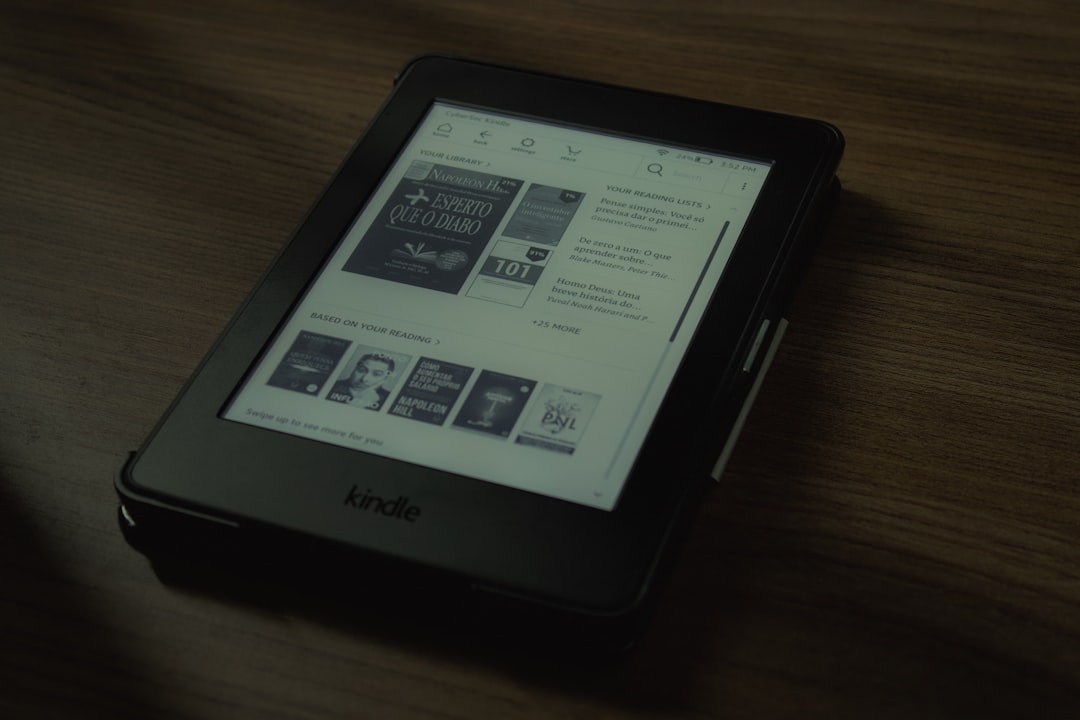
- Kindle devices (for eBooks)
And yes, it really is free. All you need is a library card.
What You Need Before You Start
Before you jump in, make sure you have:
- A valid library card
- A Kindle device or Kindle app
- An Amazon account
- The Libby app installed on your phone or tablet
If you don’t have a library card, check your local library’s website. Many offer digital sign-ups.
Step 1: Download and Set Up Libby
First, download the Libby app from the App Store or Google Play.
Open the app. You will see a friendly welcome screen.
Follow these steps:
- Tap Yes when asked if you have a library card.
- Search for your local library by name or location.
- Select your library from the list.
- Enter your library card number.
That’s it. You’re connected.
You can add multiple library cards too. This gives you access to more books.
Step 2: Find a Book
Now the fun begins.
Use the search bar to find a book by:
- Title
- Author
- Subject
- Keyword
You can also browse by category. Try mystery, romance, sci-fi, or biography.
When you see a book you like, tap on it.
You’ll see two options:
- Borrow
- Place Hold
If the book is available, tap Borrow.
If not, tap Place Hold. You’ll get notified when it’s ready.
Important: Make Sure It Supports Kindle
Not all books work with Kindle.
Look for the label that says:
Read with Kindle
If you see it, you’re good to go.
If you don’t, that book may only work inside the Libby app.
Step 3: Borrow the Book
After tapping Borrow, Libby will ask how long you want it.
Most libraries offer:
- 7 days
- 14 days
- 21 days
Choose your loan period.
Then tap Borrow again.
Now you’ll see a button that says:
Read with Kindle
Tap it.
Step 4: Send the Book to Amazon
After tapping Read with Kindle, Libby will open Amazon in your browser.
You may need to sign in to your Amazon account.
Once signed in, you’ll see a page showing the book.
Click:
Get Library Book
Now choose which Kindle device you want to send it to.
Select your device from the dropdown list.
Click Deliver.
And that’s it. The book is on its way.
Step 5: Sync Your Kindle
Pick up your Kindle device.
Make sure it’s connected to Wi-Fi.
Then:
- Tap the menu
- Select Sync
Within a few seconds, your borrowed library book should appear.
Tap it. Start reading.
It feels just like any other Kindle book.
What Happens When the Loan Ends?
Here’s the best part.
You don’t have to return it.
The book will automatically expire at the end of your loan period.
No late fees. Ever.
After it expires, it disappears from your Kindle.
Easy.
How to Return a Book Early
Finished early? You can return it.
This helps the next person in line.
To return a book:
- Log in to Amazon.
- Go to Content & Devices.
- Find the borrowed book.
- Click Return this book.
You can also manage loans directly in the Libby app.
Returning early is polite. But optional.
How to Put a Book on Hold
Popular books go fast.
If a book isn’t available:
- Tap Place Hold
- Confirm your email
- Wait for notification
Libby will tell you your place in line.
When it’s ready, you’ll get a message.
You usually have a few days to borrow it.
Reading Tips for Kindle Library Books
Once the book is on your Kindle, you can:
- Adjust font size
- Change brightness
- Highlight text
- Look up definitions
- Add notes
All features work just like with purchased books.
Your highlights even sync across devices.
Common Problems and Simple Fixes
Book Not Showing on Kindle?
- Check Wi-Fi connection
- Tap Sync again
- Make sure you chose the right Kindle device
Accidentally Sent to Wrong Device?
Go to Amazon. Resend it to the correct one.
No “Read with Kindle” Option?
The book may not support Kindle format. Try another copy or read inside Libby.
Can You Use Libby Outside the U.S.?
It depends on your library.
In the United States, Kindle delivery works smoothly.
In some other countries, Kindle support may not be available.
Check with your local library to be sure.
Why Use Libby with Kindle?
There are many reasons.
- Free books
- No late fees
- Huge selection
- Comfortable eInk reading
- Access to new releases
It’s also great for trying new authors.
If you don’t like a book, just return it.
Pro Tips for Power Readers
Want to level up? Try this:
- Add multiple library cards for bigger selection
- Use filters to sort by “Available Now”
- Check the “Skip the Line” section if your library offers it
- Borrow audiobooks for travel days
The more you explore Libby, the more hidden gems you find.
Using Kindle App Instead of a Kindle Device
No Kindle device? No problem.
You can install the Kindle app on:
- iPhone
- iPad
- Android phone
- Android tablet
The steps are the same.
When sending the book from Amazon, choose your Kindle app instead of a physical device.
Open the app. Sync. Start reading.
Is It Really Free?
Yes.
You do not pay for:
- Borrows
- Returns
- Late fees
- App downloads
Your taxes already support your library.
So use it. As much as you want.
Final Thoughts
Using Libby with your Kindle is simple. And powerful.
You get thousands of free books at your fingertips. You can borrow in bed. On the couch. On vacation. Anywhere with Wi-Fi.
No driving to the library. No due date stress. No clutter.
Just open the app. Borrow a book. Send it to your Kindle. Start reading.
Once you do it once, you’ll wonder why you didn’t start sooner.
Happy reading.
